
Startup Scripts on Onidel Cloud enable users to automate common initialization tasks, typically performed right after deploying a new Virtual Machine.
Startup Scripts are primarily meant for:
-
Automated Software Installation
-
Basic Software Configuration
-
Security Hardening
Shell Scripts
Those are executed once during the instance creation as root in the context of guest OS, using cloud-init. They are highly reusable and location-independent, allowing you to easily standardize environments across all your deployments.
There is an example script included at the end of this wiki page showcasing how to implement those in practice. You are free to take it as a base and add any other actions you want to be performed automatically during provisioning. You can use any scripting language as long as the interpreter is included within the OS template of your choice.
cloud-config (yaml)
Since July 2026, we also support custom user data passed in cloud-config format. To use this format, prefix your Startup Script with #cloud-config. It will be added to cloud-init's user data and not executed as a shell script.
An example yaml-based cloud-config snippet achieving essentially the same setup as the presented shell script is also included in the later part of this guide.
Creating a Script
In Onidel Cloud Panel, go to Orchestration > Scripts then click on New Script.
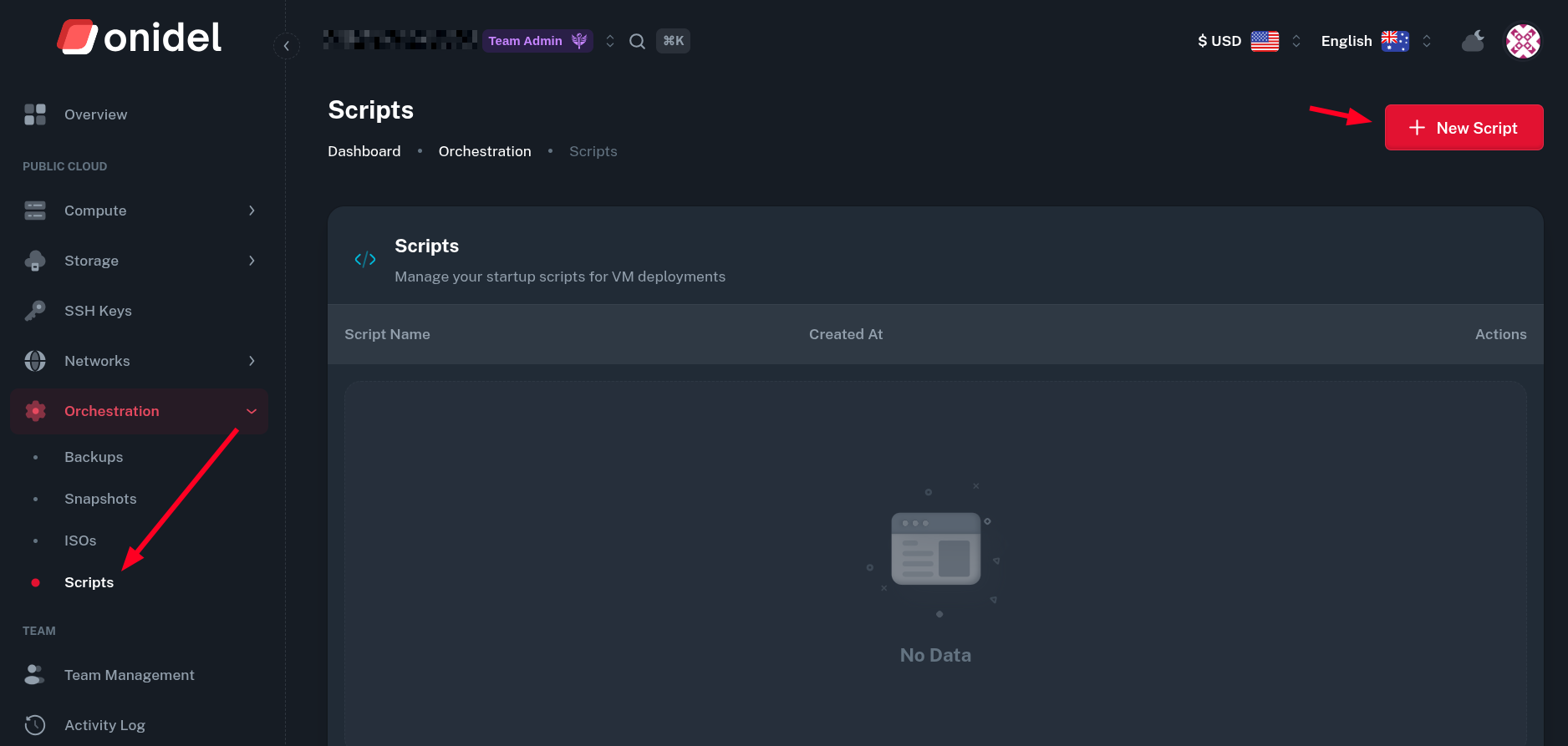
From there, you can name your script and paste its contents. Remember to use appropriate shebang in the first line of your script, so it can be interpreted correctly.
For YAML based user data, put #cloud-config in the first line instead of shebang.
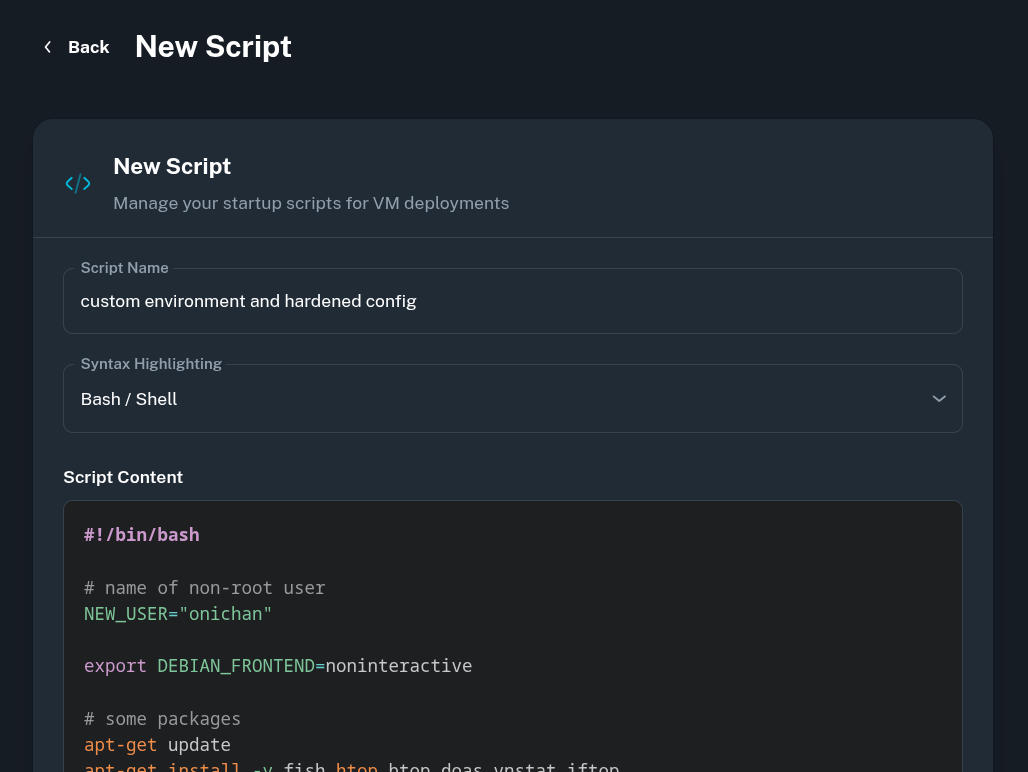
To save it, click New Script at the bottom.
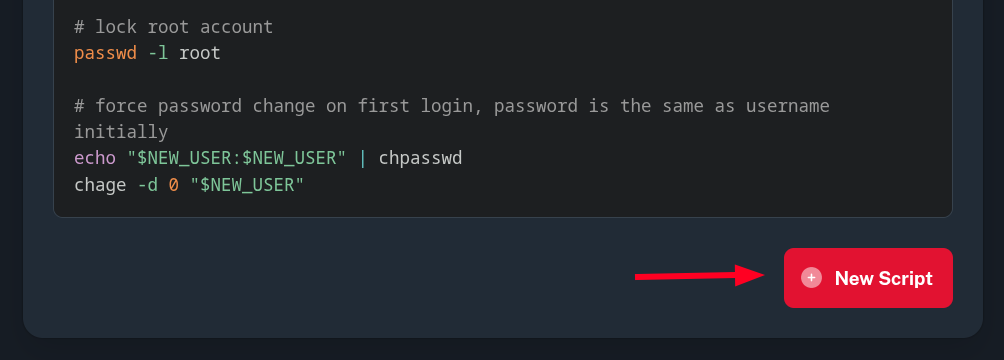
After that, your script should be visible in the list of scripts.

Deploying a VM with Startup Script
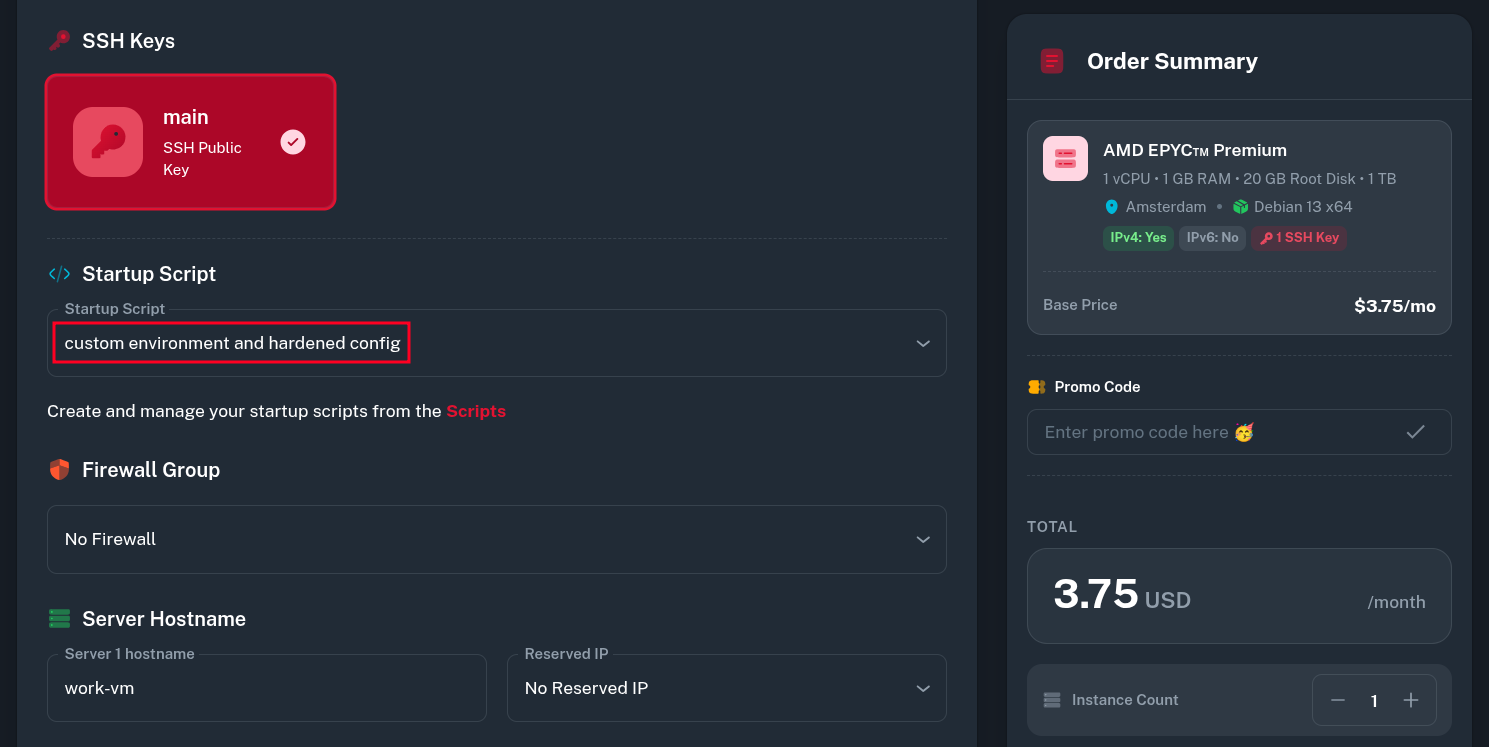
You can select the Startup Script to be applied to a VM during the ordering process. After the instance is deployed, the script will automatically be executed. Keep in mind the build process may be slightly longer during the time your startup script is executed.
Example Startup Script
Here's an example startup script made for provisioning Debian VMs. You can treat it as a presentation of common actions performed automatically after deployment, or as a reference script to be tweaked to your liking.
#!/bin/bash

# name of non-root user
NEW_USER="onichan"

export DEBIAN_FRONTEND=noninteractive

# install some common utilities
apt-get update
apt-get install -y fish htop btop doas vnstat iftop

# create new non-root user with fish as login shell
useradd -m -s /usr/bin/fish "$NEW_USER"

# copy ssh authorized client key from root to new user
ROOT_SSH="/root/.ssh"
USER_SSH="/home/$NEW_USER/.ssh"
if [ -d "$ROOT_SSH" ]; then
    mkdir -p "$USER_SSH"
    chmod 700 "$USER_SSH"

    if [ -f "$ROOT_SSH/authorized_keys" ]; then
        cp "$ROOT_SSH/authorized_keys" "$USER_SSH/"
    fi

    chown -R "$NEW_USER:$NEW_USER" "$USER_SSH"
    chmod 600 "$USER_SSH/authorized_keys" 2>/dev/null || true
fi

# configure doas
echo "permit persist $NEW_USER" > /etc/doas.conf
chmod 0400 /etc/doas.conf

# disallow root and password login on ssh
rm /etc/ssh/sshd_config.d/*cloud-init*.conf
echo 'PasswordAuthentication no' >> /etc/ssh/sshd_config.d/99-custom.conf
echo 'PermitRootLogin no' >> /etc/ssh/sshd_config.d/99-custom.conf
systemctl restart sshd

# lock root account
passwd -l root

# force password change on first login, password is the same as username initially
echo "$NEW_USER:$NEW_USER" | chpasswd
chage -d 0 "$NEW_USER"
It installs some common monitoring utilities, disallows SSH password logins, blocks root user and creates a new regular user whose password needs to be changed on first login.
The SSH public key is copied from root user to newly created one to allow logins using SSH key you've set when the VM deployment.
It also changes user shell to fish and configures the doas utility to enable controlled execution of commands as root.
Demonstration
After the Virtual Machine with the example script was deployed, I logged into the VM using SSH key previously uploaded to Onidel Cloud. It first asks for the non-root user password to be set.
$ ssh -i ~/.ssh/onidel_main_key [email protected]
...
WARNING: Your password has expired.
You must change your password now and log in again!
Changing password for onichan.
Current password:
New password:
Retype new password:
passwd: password updated successfully
Connection to 185.232.84.76 closed.
Then I'm able to login into shell using SSH key.
$ ssh -i ~/.ssh/onidel_main_key [email protected]
...
Welcome to fish, the friendly interactive shell
Type help for instructions on how to use fish
onichan@work-vm ~>
Without supplying the key, login attempts are instantly rejected.
$ ssh [email protected]
[email protected]: Permission denied (publickey).
Inside the VM, I can also verify that monitoring utilities were installed properly.
onichan@work-vm ~> vnstat -d

 eth0  /  daily

          day        rx      |     tx      |    total    |   avg. rate
     ------------------------+-------------+-------------+---------------
     2026-03-15    10.40 MiB |  279.38 KiB |   10.68 MiB |   16.10 kbit/s
     ------------------------+-------------+-------------+---------------
      estimated   105.78 MiB |    2.75 MiB |  108.53 MiB |
Example cloud-config
Here's an example yaml cloud-config snippet that installs basic packages, creates new user and performs basic system hardening. It is meant to serve as a base for more complex custom setups. It should generally be portable across different Linux distributions.
Before using this template:
-
Replace the non-root user password with a hash generated using
openssl passwd -6. -
Put your public SSH key into the list of
ssh_authorized_keys.
#cloud-config

# update package lists and install some common utilities
package_update: true
packages:
  - fish
  - htop
  - btop
  - doas
  - vnstat
  - iftop

# create new non-root user with fish as login shell and lock root account
disable_root: true
users:
  - name: onichan
    shell: /usr/bin/fish
    lock_passwd: false
    # generated password hash inside single quotes
    passwd: '$6$Zs6QVyaSO8kf3yUW$1IrXj...'
    # public ssh key for non-root user
    ssh_authorized_keys:
      - ssh-ed25519 AAAAC... onichan@station

write_files:
  # configure doas
  - path: /etc/doas.conf
    permissions: '0400'
    content: |
      permit persist onichan

  # disallow root and password login on ssh
  - path: /etc/ssh/sshd_config.d/99-custom.conf
    permissions: '0644'
    content: |
      PasswordAuthentication no
      PermitRootLogin no

# execute remaining commands at the end of boot
runcmd:
  # remove default cloud-init sshd config overrides and restart ssh service
  - rm -f /etc/ssh/sshd_config.d/*cloud-init*.conf
  - systemctl restart sshd
Troubleshooting
If you run into issues with the Startup Script not being executed properly, after boot check the status of returned by cloud-init setup. Any errors and warnings related to VM initialization should be included there.
$ cloud-init status --long
status: done
extended_status: degraded done
boot_status_code: enabled-by-generator
last_update: Thu, 01 Jan 1970 00:01:27 +0000
detail: DataSourceNoCloud [seed=/dev/sr1]
errors: []
recoverable_errors:
DEPRECATED:
	- 'user' of type string is deprecated in 22.2 and scheduled to be removed in 27.2. Use 'users' list instead.
	- 'user' of type string is deprecated in 22.2 and scheduled to be removed in 27.2. Use 'users' list instead.
For a more detailed debug log of the cloud-init runner within your system, you may also check /var/log/cloud-init.log a few minutes after boot.
$ cat /var/log/cloud-init.log
2026-08-08 21:01:32,488 - log_util.py[DEBUG]: Cloud-init v. 25.1.4 running 'init-local' at Sat, 08 Aug 2026 21:01:32 +0000. Up 7.76 seconds.
2026-08-08 21:01:32,488 - main.py[INFO]: PID [1] started cloud-init 'init-local'.
...
2026-08-08 21:02:53,304 - performance.py[DEBUG]: cloud-init stage: 'modules-final' took 73.621 seconds
2026-08-08 21:02:53,304 - handlers.py[DEBUG]: finish: modules-final: SUCCESS: running modules for final