

Onidel Automatic Backup provides an automated and reliable solution to safeguard your virtual machines with minimal operational overhead. Designed for speed, flexibility, and robust data protection, the backup subsystem shares architecture and feature parity with VM Snapshots, enabling point-in-time recovery, instant file recovery, and offsite disaster readiness.
Key Features and Storage Architecture
-
Native Storage (Sydney, Melbourne, Singapore, Vietnam): Backups are hosted on Onidel dedicated storage clusters in Sydney and Singapore, providing rapid backup creation and restoration.
-
Backblaze B2 Storage (New York and Amsterdam): Backups are securely stored in B2 and automatically encrypted prior to upload with unique per-backup encryption keys managed on Onidel infrastructure.
-
Custom S3 Destinations: Upload backups directly to your own S3-compatible object storage (Self-hosted Garage, MinIO, AWS S3, Cloudflare R2, Ceph, or Onidel Object Storage) with optional client-side age encryption and perpetual retention.
-
Automated Scheduling: Executes automatically on a Daily, Weekly, or Monthly schedule.
-
Snapshot Parity: Backups stored on Onidel infrastructure support one-click panel restoration, Instant File Recovery (mounting as a read-only secondary drive), image downloads, and conversion to permanent snapshots.
Cost Structure
Automatic Backup is priced at $0.10 per GB per month, calculated on the provisioned disk size of your virtual machine (for example $2.00/month for a 20 GB instance).
How to Enable Automatic Backup
Automatic Backup can be enabled when placing an initial order or activated later on an existing virtual machine through the Add-ons catalog.
During Order
-
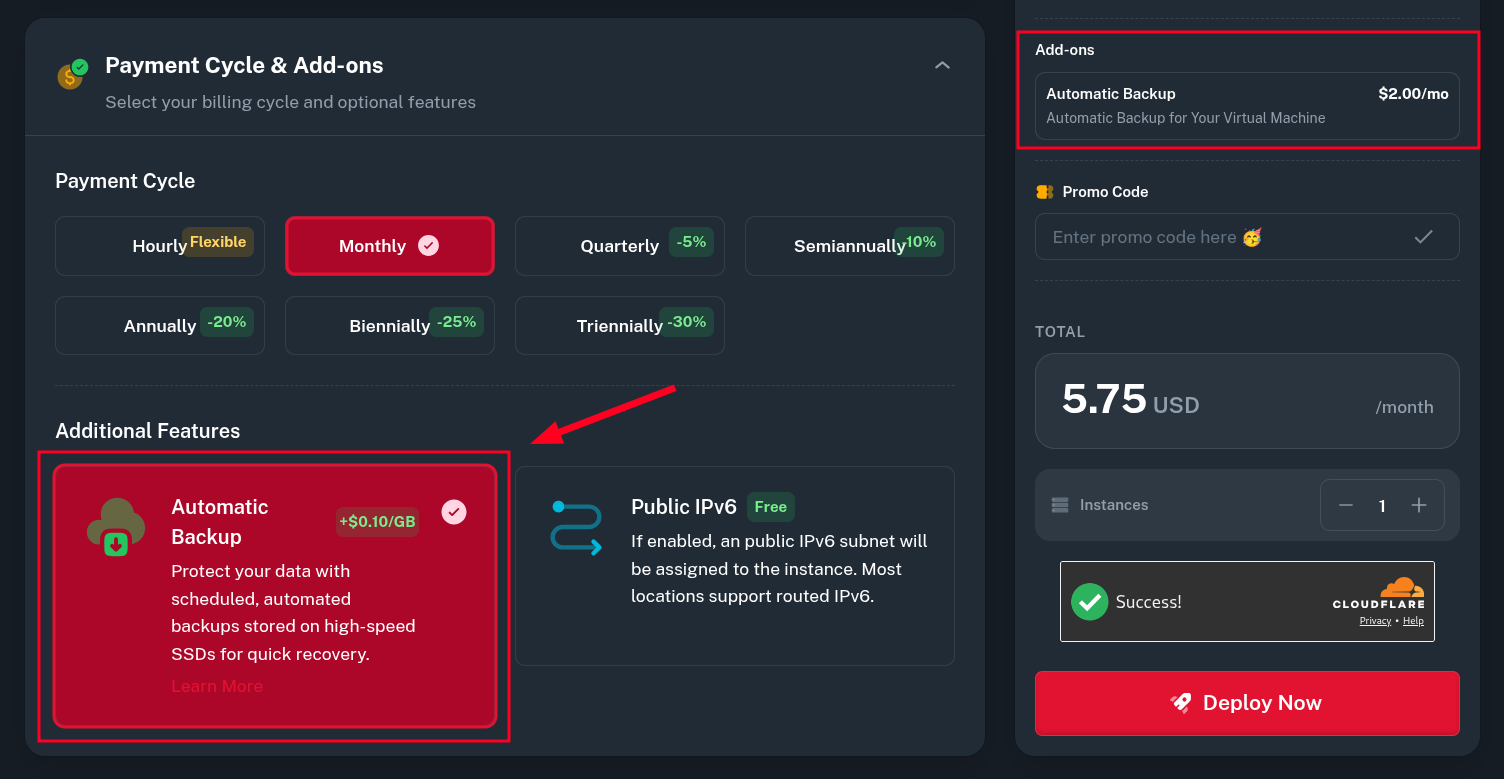
On the VM Deployment page, scroll to Payment Cycle & Add-ons.
-
Under Additional Features, select Automatic Backup.
-
Complete your order. The instance is protected from day one with automatic backups enabled, configured with an initial default schedule that can be customized at any time under Storage > Backups > Schedule.
Add-on for Existing VMs
-
Go to Compute > Virtual Machines and select your VM.
-
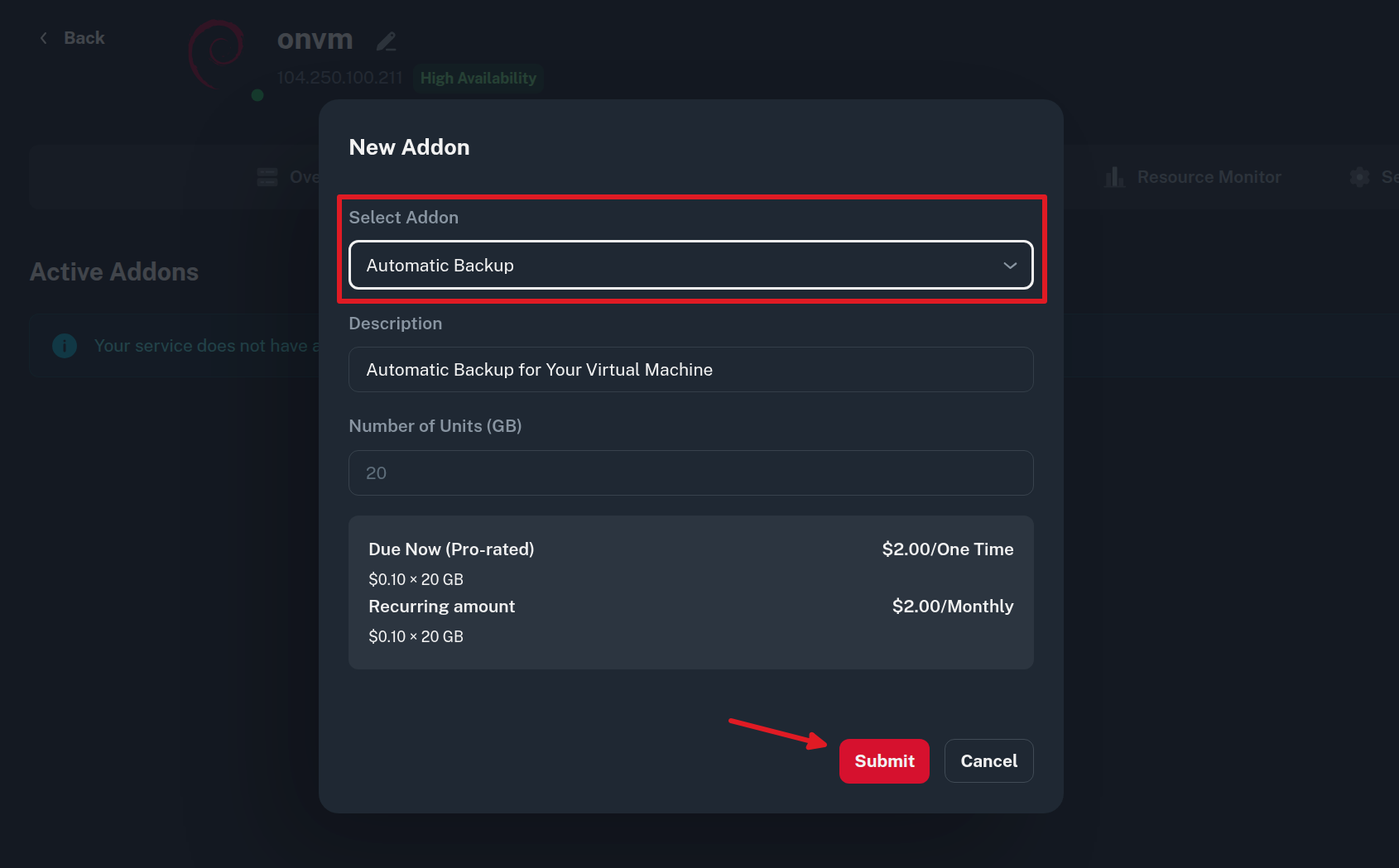
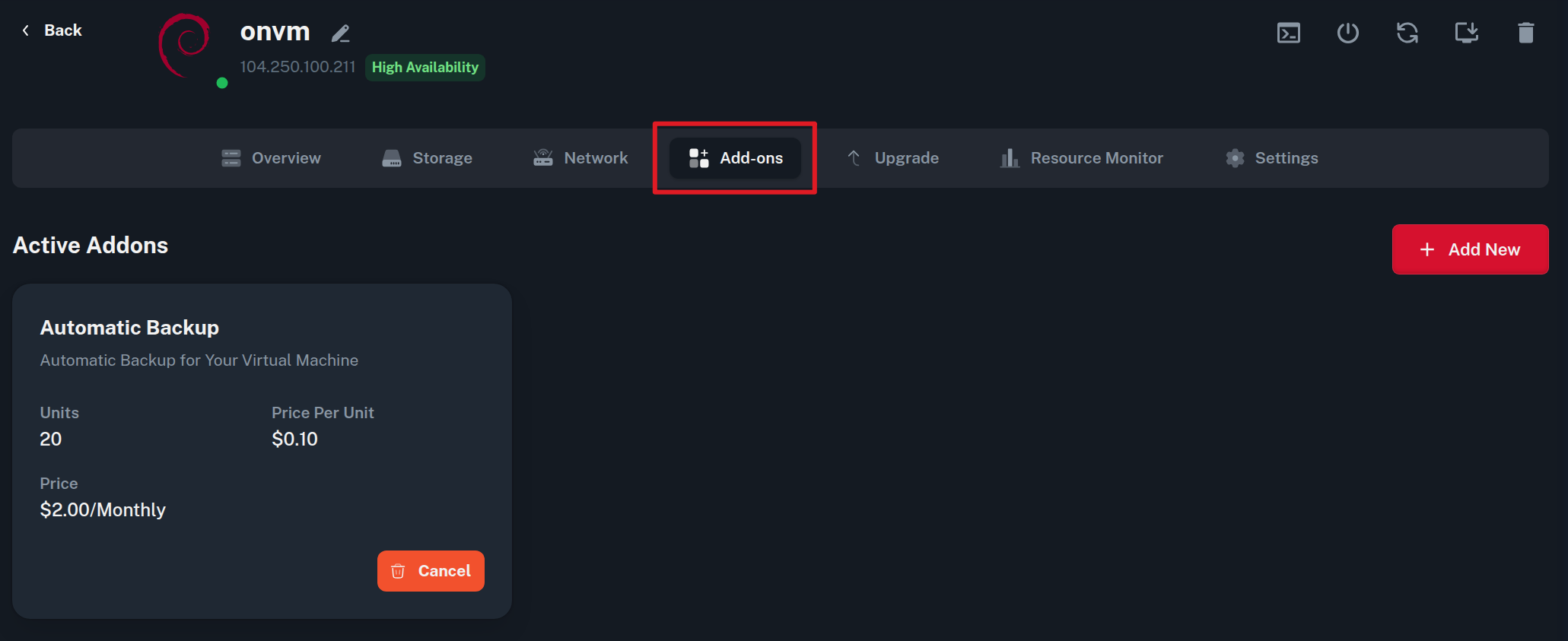
Open the Add-ons tab and click Add New.
-
Select Automatic Backup from the dropdown menu. The interface displays the unit size and recurring monthly price based on your disk size. Click Submit.
-
Pay the generated invoice using account credits or your preferred payment method.
-
Once confirmed, the Automatic Backup add-on appears in your active add-ons list.
Configuring Automatic Backup (Onidel Storage)
By default, backups are stored directly on Onidel's infrastructure (native HDD storage in Sydney and Singapore, Backblaze B2 in the USA and the Netherlands). No external configuration is required.
Setting a Backup Schedule
-
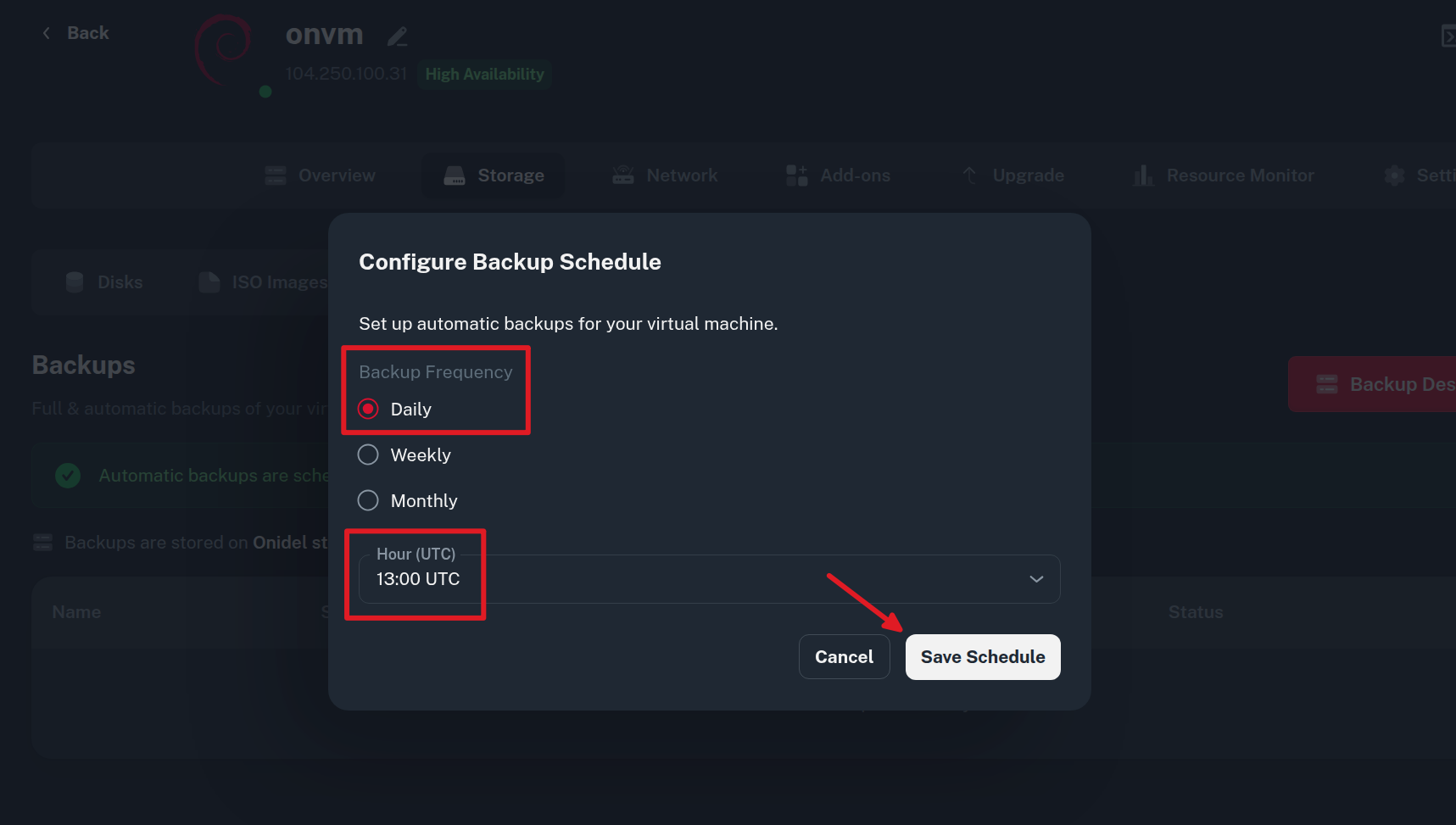
On your virtual machine page, open Storage > Backups and click Schedule.
-
Select your desired Backup Frequency:
-
Daily: Runs once every 24 hours at the chosen UTC hour.
-
Weekly: Choose a day of the week and UTC hour.
-
Monthly: Choose a calendar day of the month and UTC hour.
-
-
In the Hour (UTC) dropdown, select your desired execution hour.
-
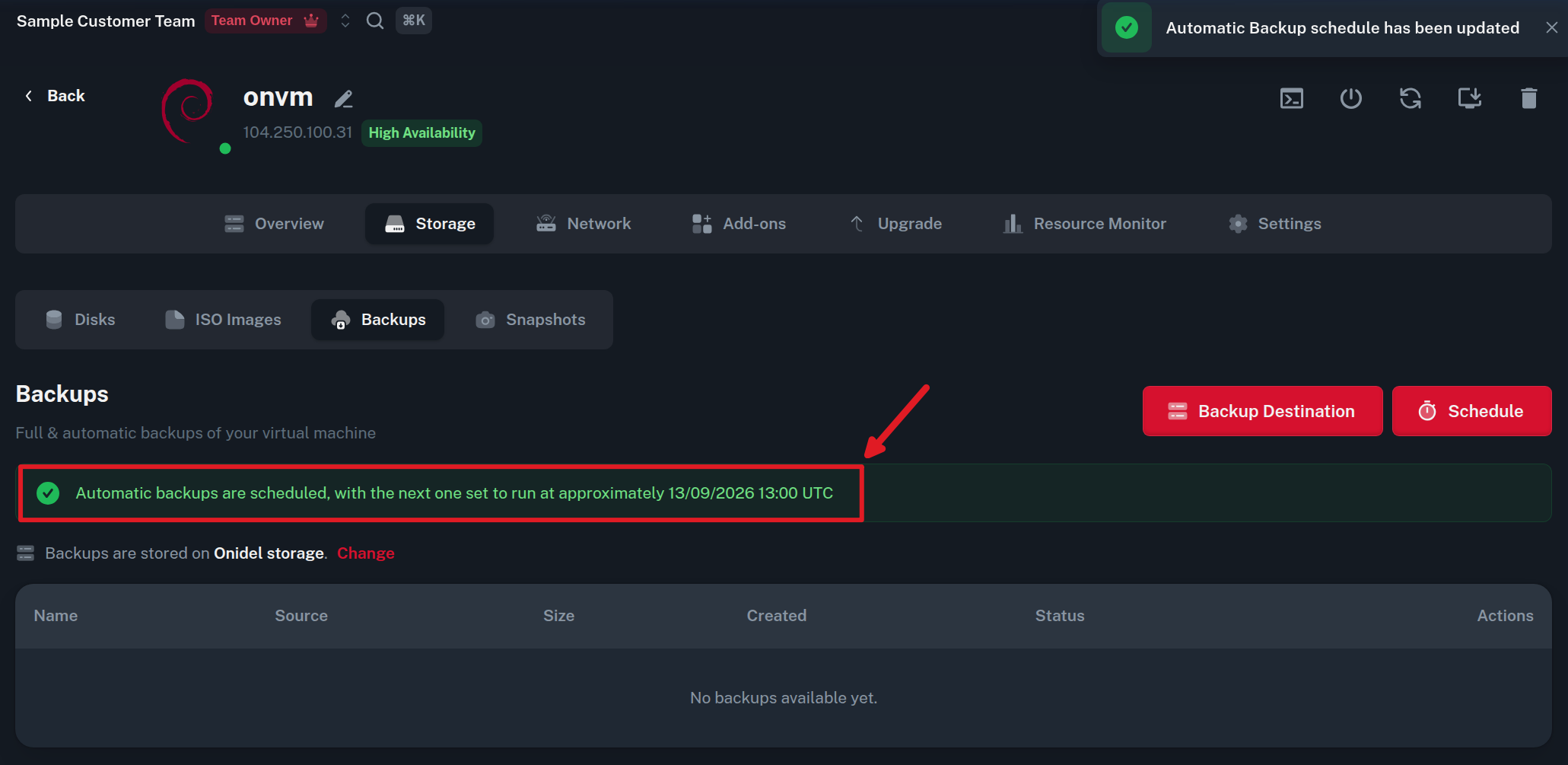
Click Save Schedule. A confirmation banner displays the next scheduled execution time.
How the Backup Process Works
-
The automated scheduler initiates when selected schedule time is reached. The backup job usually starts within a few minutes of the set time.
-
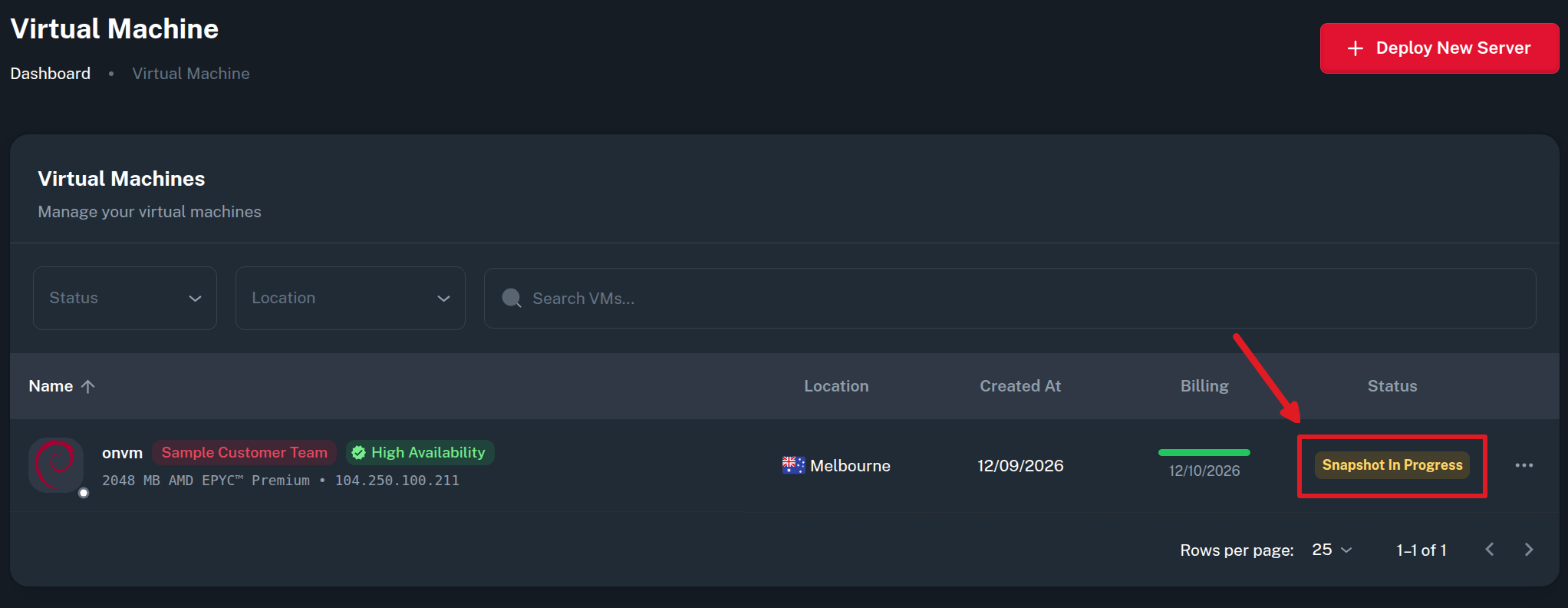
In the Compute > Virtual Machines dashboard, the status badge turns yellow, displaying Snapshot In Progress.
-
The VM remains completely online and accessible. Network traffic, SSH sessions, web servers, and databases continue running without interruption.
-
While the snapshot is in progress, control panel management actions (such as resizing disks, altering hardware configurations, rebooting, or deleting the instance) are temporarily locked to protect file system consistency.
-
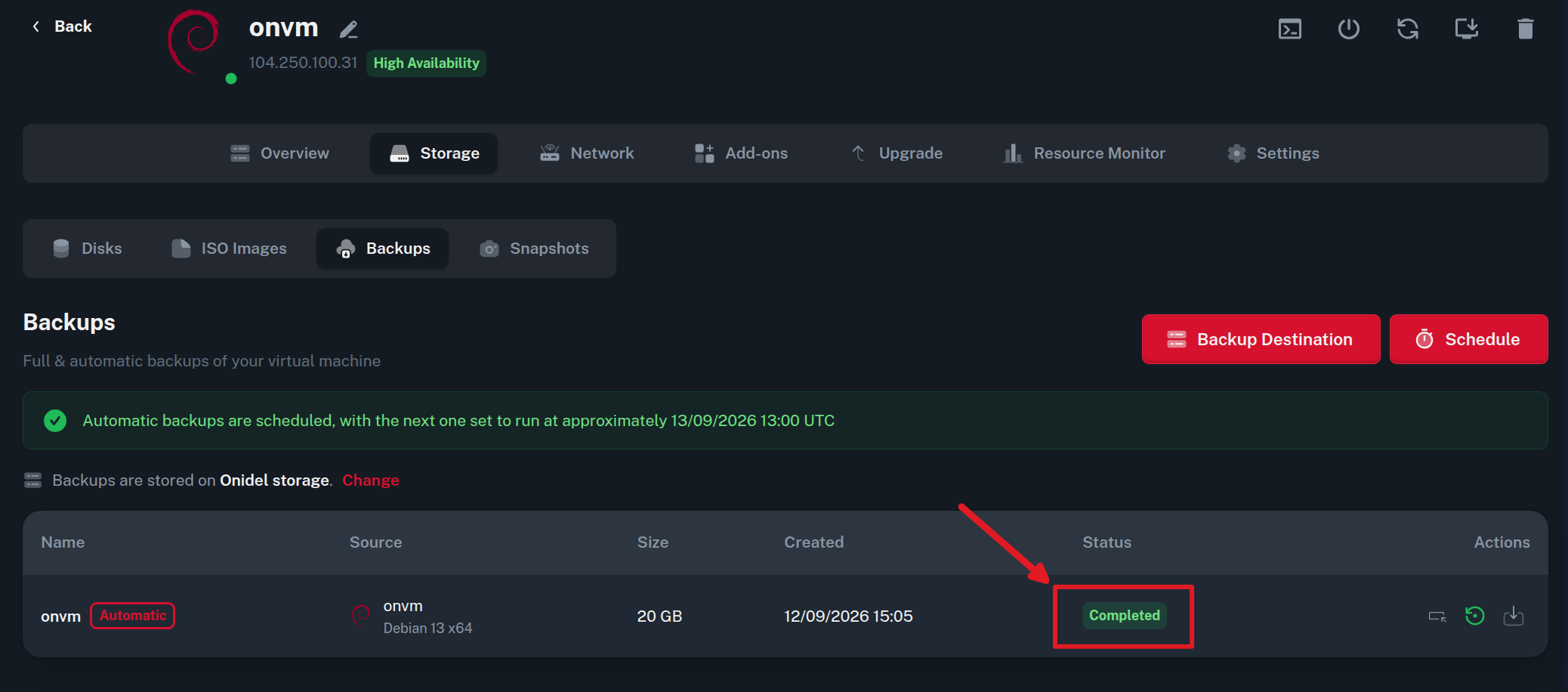
Once the disk snapshot is finalized, the virtual machine status immediately returns to green (Online), panel controls are unlocked, and the newly created backup appears in your Backups table displaying its creation timestamp, disk size, and completed status:
Restoring and Managing Backups on Onidel Storage
Restoring a Virtual Machine
Restoring reverts your VM primary disk to the state captured in the backup:
-
In Storage > Backups, click the Restore button (counter-clockwise arrow icon) on the backup row.
-
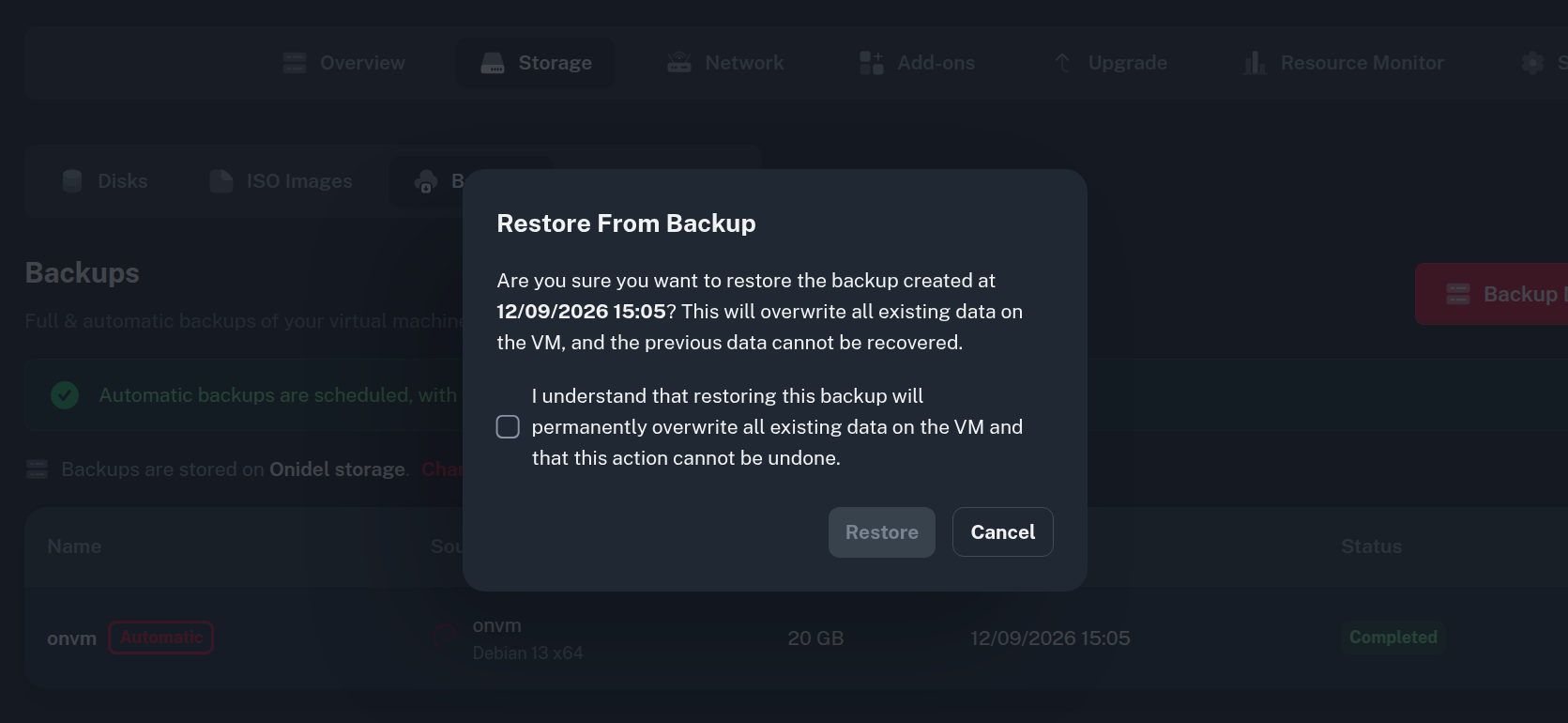
Review the confirmation dialog:
-
Check the acknowledgment box.
-
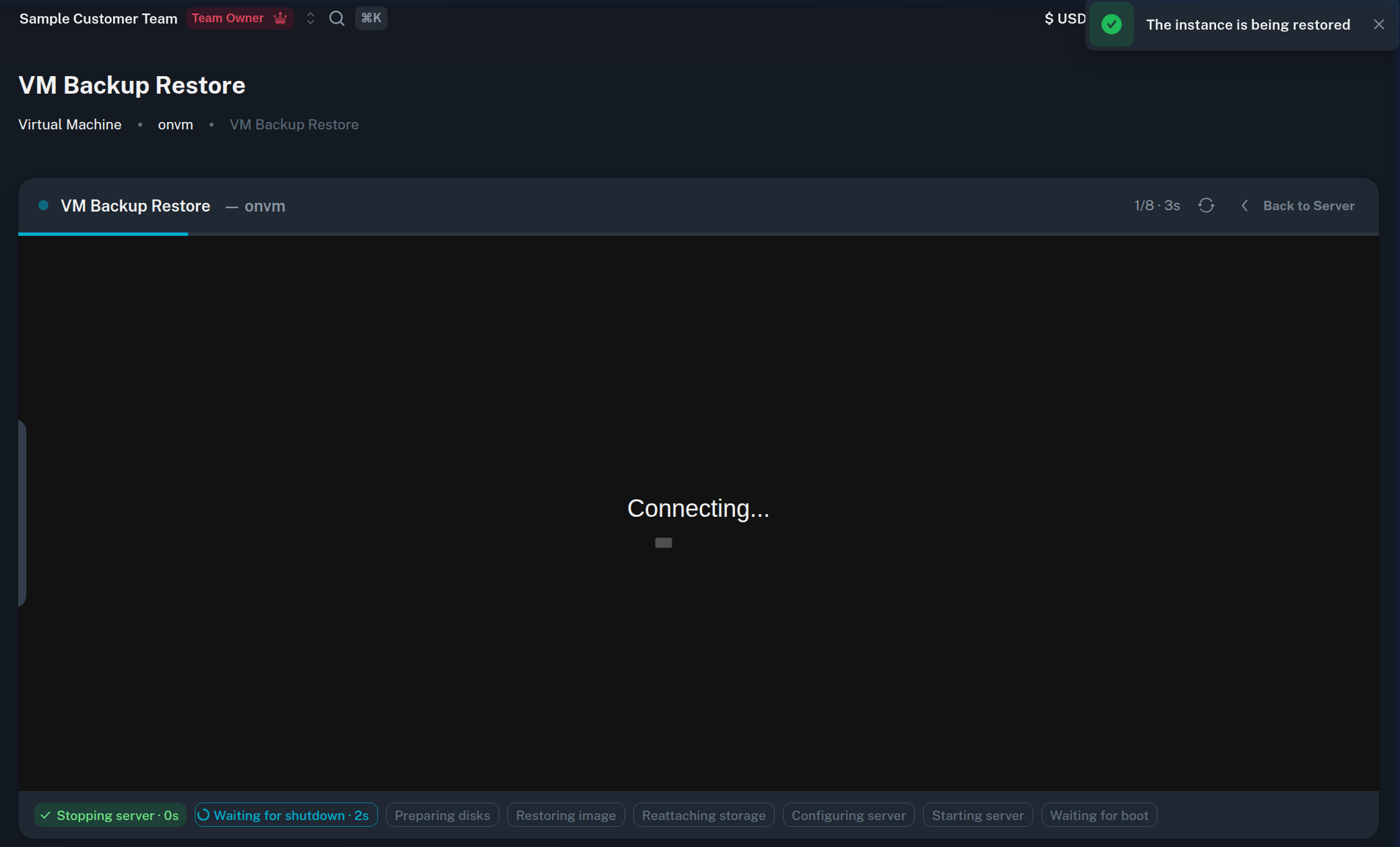
Click Restore. The VM shuts down and executes the restoration pipeline (Stopping server, Waiting for shutdown, Preparing disks, Restoring image, Reattaching storage, Starting server).
Instant File Recovery (Attaching as Secondary Disk)
Instead of overwriting an entire server or downloading massive disk images, you can attach any backup stored on Onidel infrastructure directly to your running virtual machine as a secondary read-only block device:
-
In Storage > Backups, click Attach (drive link icon).
-
The drive attaches immediately without rebooting or taking the VM offline, and automatically detaches after 24 hours.
ℹ️ Note: When attaching backups from New York or Amsterdam, Onidel automatically copies the backup to temporary storage, decrypts it on the fly, and attaches it as a standard read-only drive. You can mount partitions immediately without manual decryption.
💡 Tip: For partition mounting commands, see in the VM Snapshots Guide.
Downloading a Backup
To download a backup image for offline archival or migration:
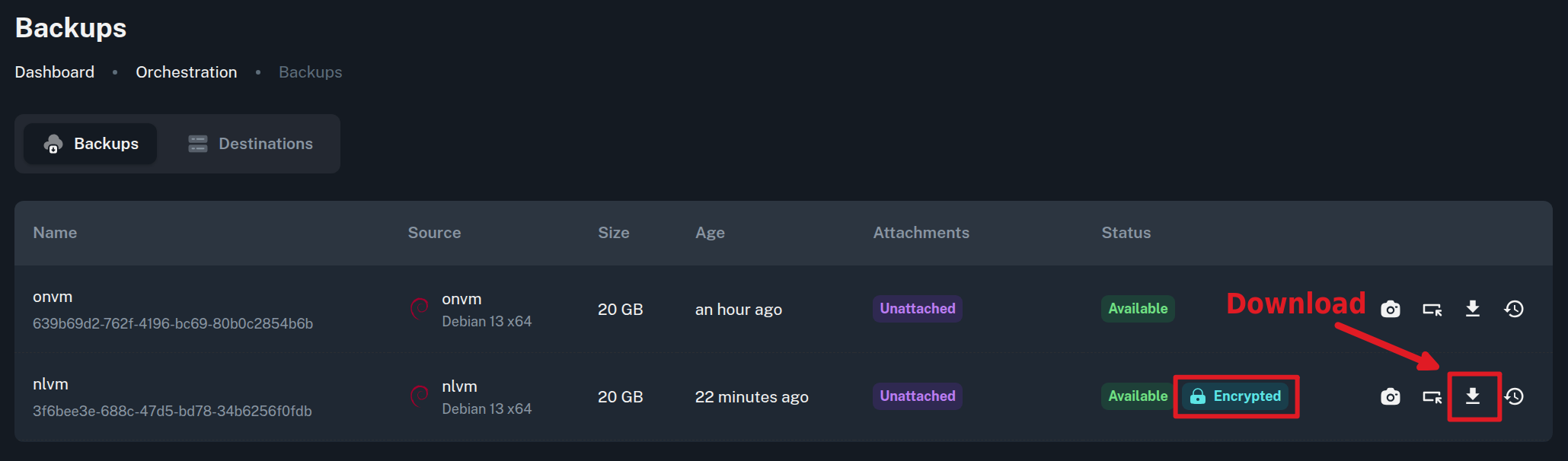
- In Storage > Backups (or Orchestration > Backups), click the Download icon.
Unencrypted Backups (Melbourne / Sydney / Singapore / Vietnam)
Downloads the compressed .raw.zst disk image directly to your local computer.
Encrypted Backups (New York and Amsterdam)
Backups taken in New York or Amsterdam are stored in Backblaze B2 and show an Encrypted badge in the Orchestration backups table:
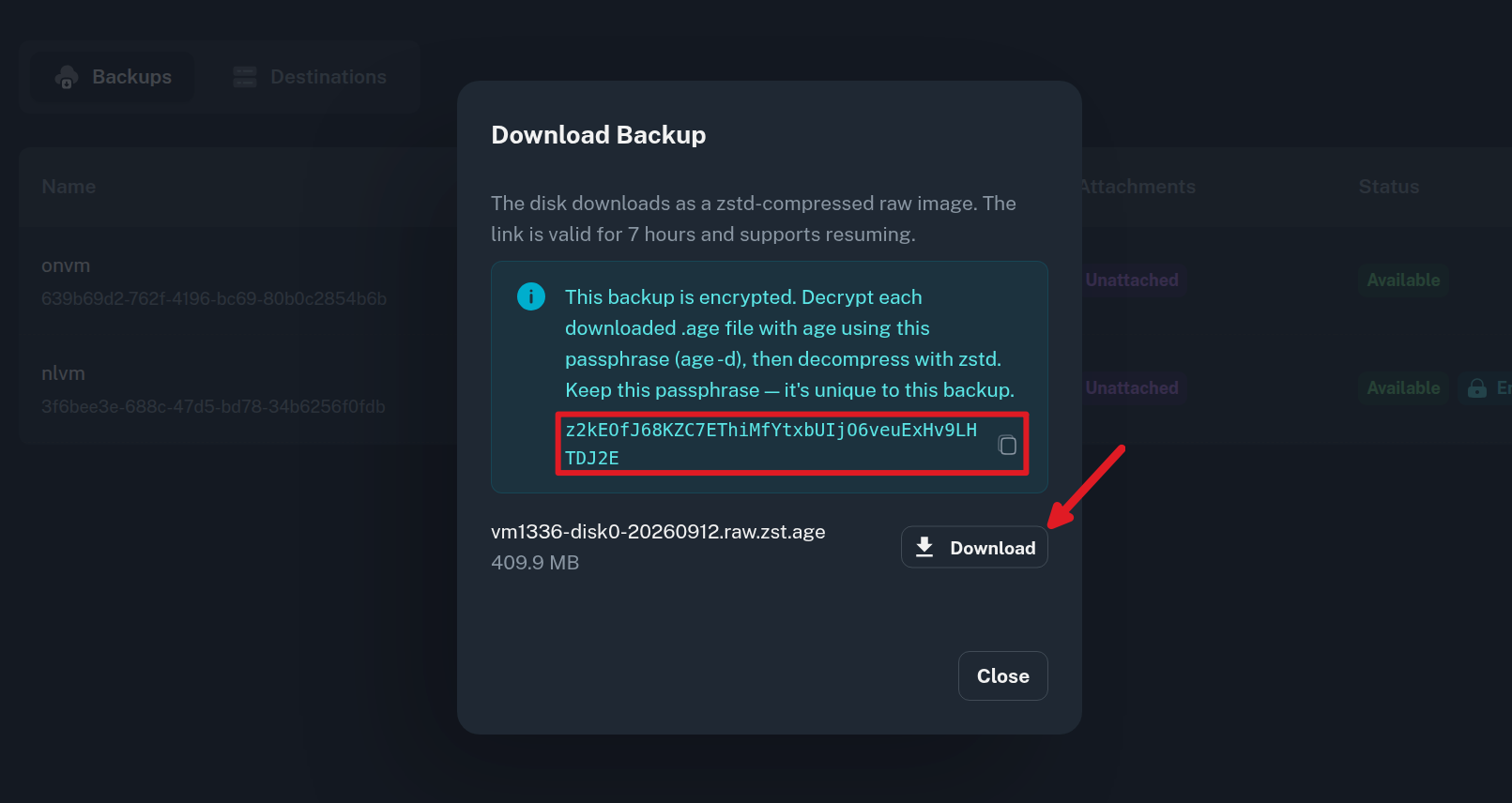
When you click Download on an encrypted backup, a modal displays the unique age decryption passphrase:
-
Copy the displayed passphrase.
-
Click Download to save the encrypted archive (
.raw.zst.age). -
Ensure age is installed on your workstation (
apt install age,brew install age, or from GitHub releases directly) and decrypt the downloaded file:age -d vm1336-disk0-20260912.raw.zst.age > vm1336-disk0-20260912.raw.zst
Paste the passphrase when prompted.
💡 Tip: To decompress .raw.zst images using zstd, see Decompressing Downloaded Snapshots in the VM Snapshots Guide.
Converting a Backup to a Snapshot
-
Open Orchestration > Backups.
-
Click Convert to Snapshot on the backup entry and enter a snapshot name.
-
The snapshot appears under Orchestration > Snapshots.
Custom Backup Destinations and Client-Side Encryption
While Onidel storage provides convenient one-click recovery, you can also configure backups to upload directly to your own self-hosted or cloud S3 storage (such as Garage, MinIO, AWS S3, Cloudflare R2, Ceph, or Onidel Object Storage).
Differences from Onidel Storage
-
Customer Custody: Backups are stored only in your external bucket. Onidel tracks backup metadata, but does not keep copies of disk data. Restore, Attach, and Download actions from the panel are not available for external backups.
-
Retention: External backups are never pruned by Onidel. You manage data retention through bucket lifecycle policies.
-
Client-Side Encryption: Backups can be encrypted with age before transmission with a predefined key.
Add a Custom Destination
You can add backup destinations from within a VM's Storage > Backups > Backup Destination modal or globally via Orchestration > Backups > Destinations:
-
Click Add Backup Destination.
-
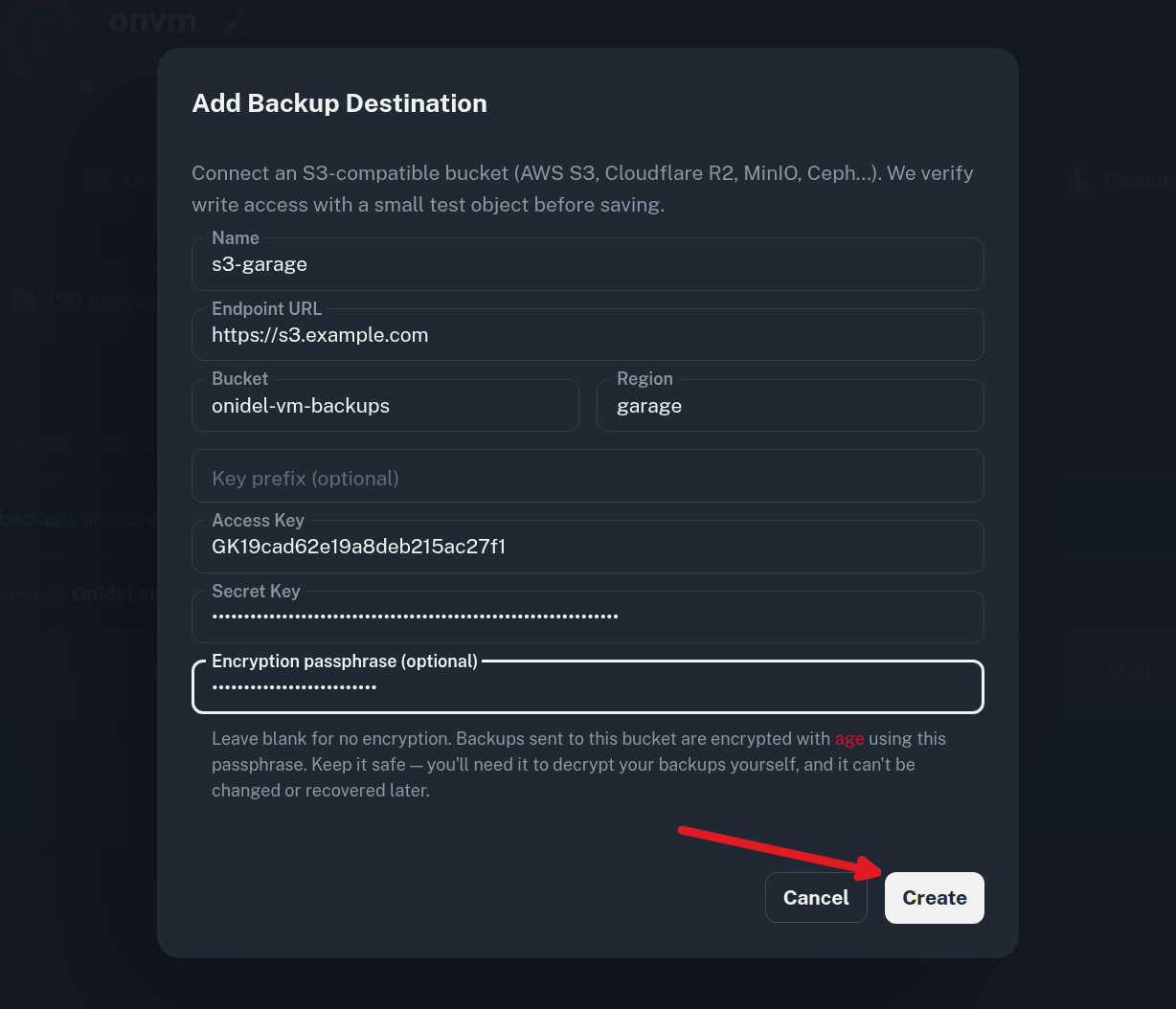
Enter your S3 storage details:
-
Name: A descriptive label.
-
Endpoint URL: The S3 endpoint URL.
-
Bucket: Target bucket name (e.g.,
onidel-vm-backups). -
Region: Bucket region.
-
Access Key and Secret Key: API credentials authorized for the bucket.
-
Encryption passphrase (optional): Enter a strong encryption passphrase. When specified, backups sent to this bucket are encrypted using age before upload.
-
-
Click Create. Onidel verifies write permissions with a test object and registers the destination.
❗ Important: Save your encryption passphrase securely. Encryption is performed client-side and Onidel does not store your passphrase. If lost, your encrypted backups cannot be recovered.
Using Onidel Object Storage as a Destination
You can use Onidel S3 Object Storage as your backup target:
-
Navigate to Storage > Object Storage and create or select an object storage service.
-
Create a bucket (e.g.,
onidel-vm-backups) and generate keys under the Access Keys tab. -
In the Add Backup Destination dialog, enter the regional endpoint URL, bucket name, region, and access keys. Optionally set an
ageencryption passphrase.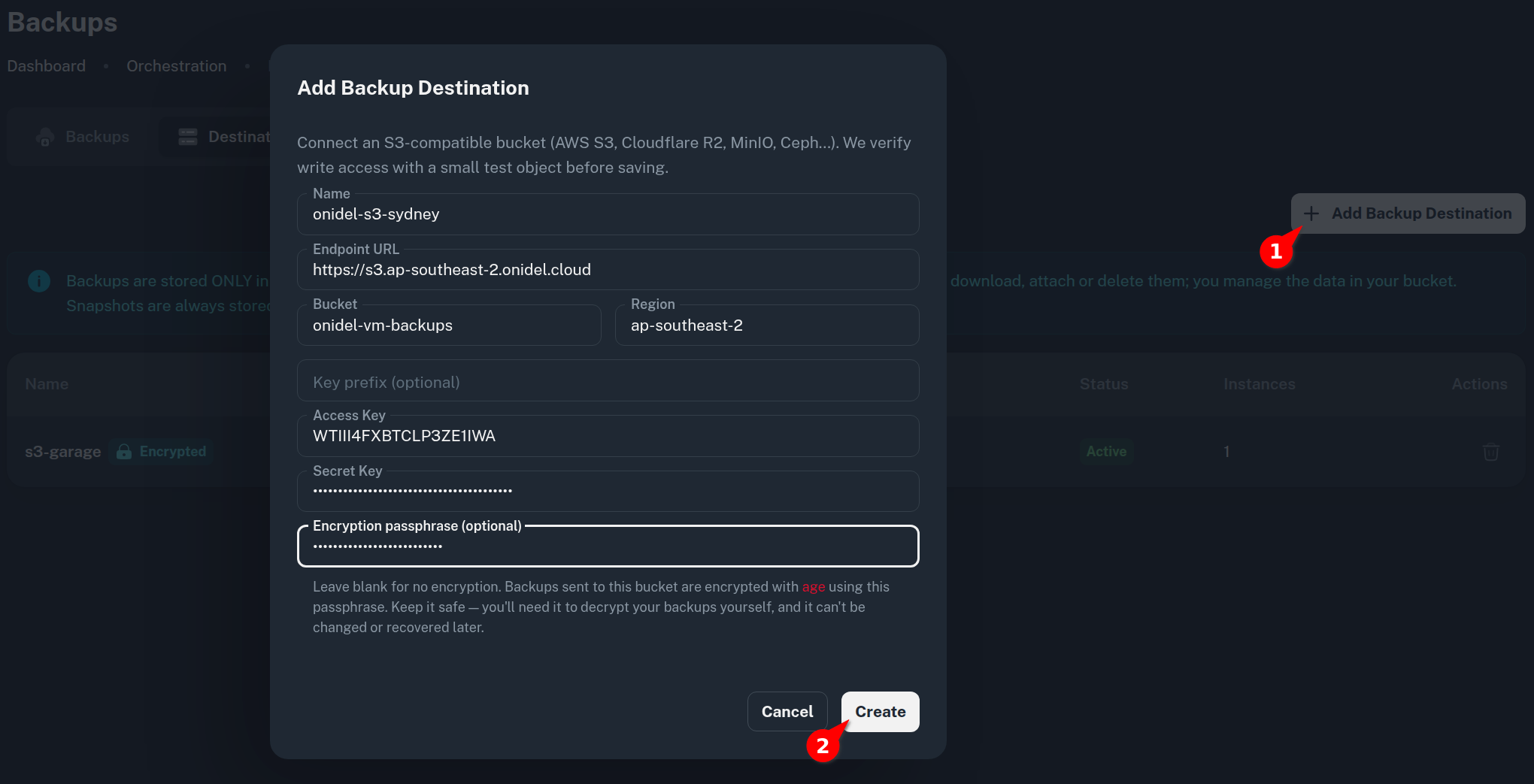
-
Click Create.
Viewing and Managing Destinations
To view all configured custom backup destinations across your account:
-
In the main navigation, open Orchestration > Backups.
-
Click the Destinations tab.
-
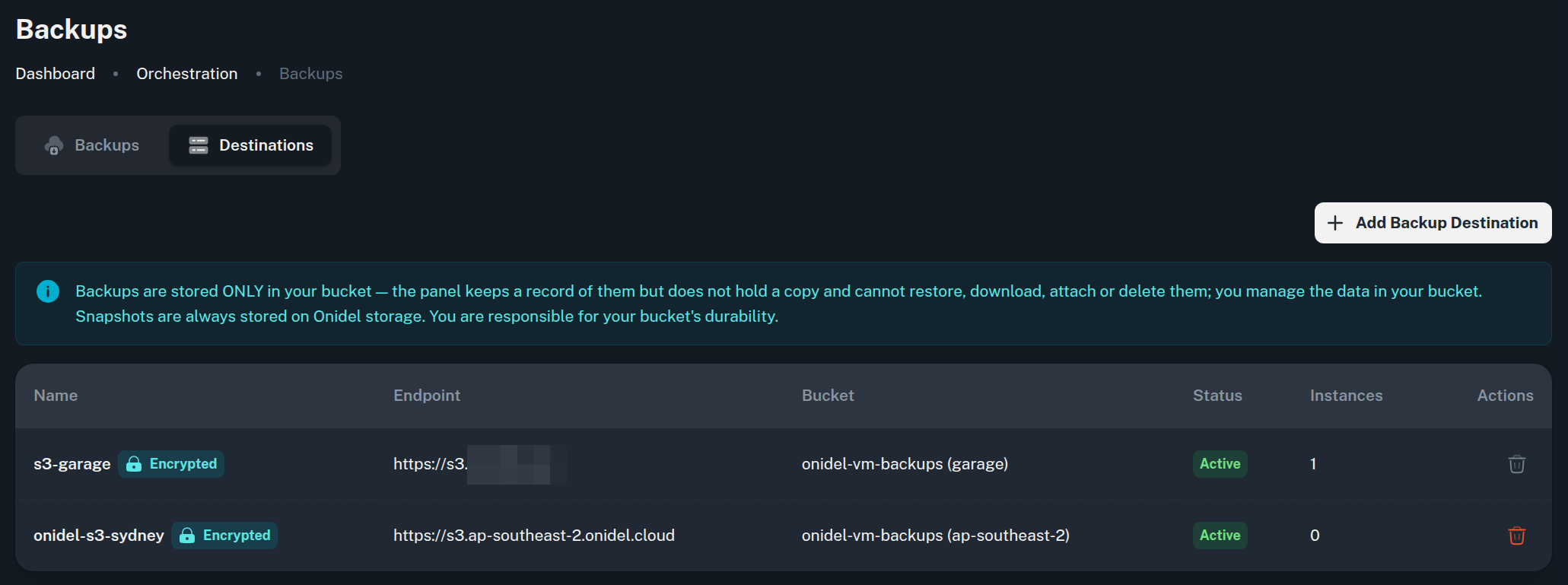
The table lists all active destinations, displaying the destination name, encryption status badge, endpoint URL, target bucket, status, and the number of VM instances currently assigned to each target.
Set the Destination on Your Virtual Machine
-
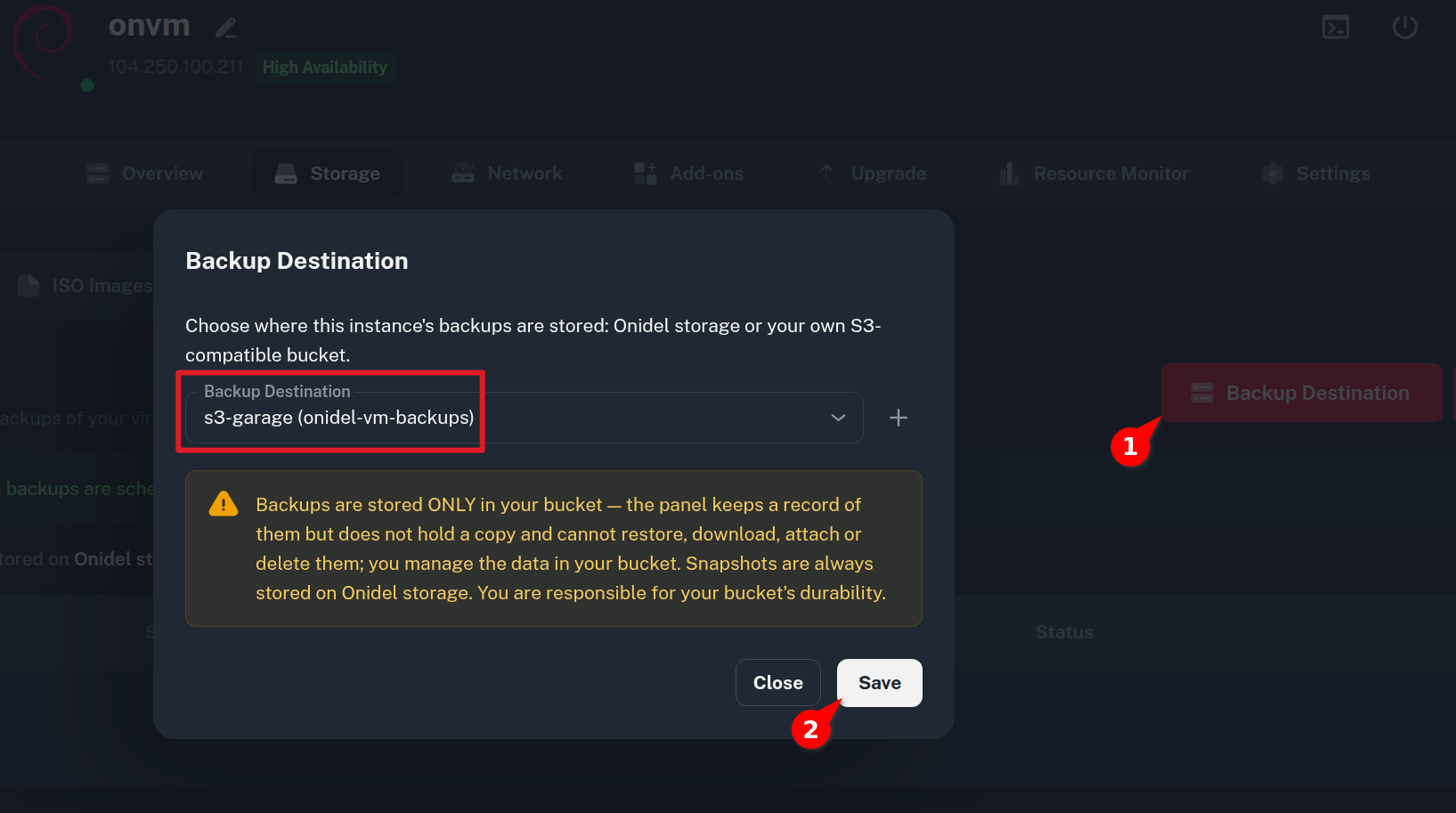
In your VM management view under Storage > Backups, click Backup Destination.
-
Select your desired destination from the dropdown menu.
-
Review the notice (Backups are stored ONLY in your bucket; panel actions cannot restore or download them).
-
Click Save.
S3 Bucket Contents and Decrypting Backups
Backups uploaded to external destinations use the following directory layout:
s3://<bucket-name>/vm-<vm-service-uuid>/<capture-id>/
├── manifest.json
└── disk-0.raw.zst.age
You can list objects using S3 CLI tools (such as s3cmd):
$ s3cmd --host=s3.example.com --host-bucket="s3.example.com" ls --recursive s3://onidel-vm-backups
2026-09-12 12:06    429742094  s3://onidel-vm-backups/vm-9fe75d5a-c0f1-4521-803d-f01fc1af0365/9efd126c-e976-4353-9525-2c6ecc74be8d/disk-0.raw.zst.age
2026-09-12 12:07          472  s3://onidel-vm-backups/vm-9fe75d5a-c0f1-4521-803d-f01fc1af0365/9efd126c-e976-4353-9525-2c6ecc74be8d/manifest.json
Manifest Metadata
The manifest.json file describes the VM metadata, disk identifiers and compression/encryption formats:
{
  "base_capture": null,
  "capture_id": "9efd126c-e976-4353-9525-2c6ecc74be8d",
  "capture_type": "backup",
  "created_at": "2026-09-12T12:06:24.963430+00:00",
  "disks": [
    {
      "disk_index": 0,
      "disk_key": "virtio0",
      "object": "disk-0.raw.zst.age",
      "source_image": "nvme_storage/vm-1017-disk-0"
    }
  ],
  "encrypted": true,
  "engine": "onidel-s3-backup/1",
  "format": "raw+zstd+age",
  "vm": {
    "name": "onvm",
    "service_uuid": "9fe75d5a-c0f1-4521-803d-f01fc1af0365",
    "vmid": 1017
  },
  "zstd_level": 3
}
Decrypting and Decompressing Your Backup Image
The virtual disk image (disk-0.raw.zst.age) is stored in raw+zstd+age format: a raw disk image compressed with zstd and encrypted with age.
Download from S3
s3cmd get s3://onidel-vm-backups/vm-<uuid>/<capture-id>/disk-0.raw.zst.age .
Decrypt with age
Run the decryption command:
age -d disk-0.raw.zst.age > disk-0.raw.zst
Enter your destination passphrase when prompted. The output disk-0.raw.zst is the decrypted, compressed raw disk image.
Decompress with zstd
To inspect or mount the image locally on your workstation:
zstd -d disk-0.raw.zst -o disk-0.raw
Verify that the output is a valid raw disk image containing your virtual machine's partition table:
file disk-0.raw
# disk-0.raw: DOS/MBR boot sector; partition 1...
The uncompressed disk-0.raw image can be mounted locally via loopback or qemu-nbd, inspected, or imported into hypervisors.
Restoring Backups from External Storage
When backups are uploaded to a custom S3 destination, Onidel keeps an index record of the backup in the control panel but does not hold a copy of the disk data. Consequently, the panel cannot directly attach or restore external backups automatically.
To restore an external backup onto an Onidel instance:
-
Download
disk-0.raw.zst.agefrom your external bucket and decrypt it usingage -d.age -d disk-0.raw.zst.age > disk-0.raw.zst -
Upload
disk-0.raw.zstto a publicly accessible URL (such as a temporary public bucket in Onidel Object Storage).❗ Important: The image URL must be directly accessible via HTTP/HTTPS. Presigned URLs are not currently supported for snapshot imports.
-
Follow the Importing Disk Image Guide to import the URL into Onidel Cloud:
-
Go to your VM management view or Orchestration > Snapshots.
-
Input the public image URL to import the disk image directly into your account as a Snapshot.
-
-
Use the imported snapshot to restore an existing VM or deploy a new instance.
⚠️ Warning: Do not leave unencrypted VM images on public URLs. Once Onidel confirms the snapshot import has finished, immediately delete disk-0.raw.zst from the public bucket or revoke public read access.
Retention and Add-on Management
Retention Policies Compared
| Storage Location | Retention Rule | Management |
|---|---|---|
| Onidel Storage (Sydney, Singapore, encrypted Backblaze B2) | 2 most recent versions retained automatically regardless of backup frequency. | Managed automatically by Onidel system pruning. |
| Custom S3 Destination | Onidel never deletes or prunes backups uploaded to external buckets. | Managed directly by customer bucket lifecycle rules. |
💡 Tip: Because external backups are never pruned by Onidel, daily captures accumulate over time. Configure an S3 lifecycle expiration rule on your bucket (e.g., prefix vm-*/) to automatically expire or transition older backups (such as after 30, 60, or 90 days) based on your retention requirements.
Disabling and Re-Enabling
-
You can cancel the Automatic Backup add-on at any time under VM Management > Add-ons by clicking Cancel on the Automatic Backup card.
-
To re-enable the feature after canceling, please contact customer support to have the add-on provisioned again.