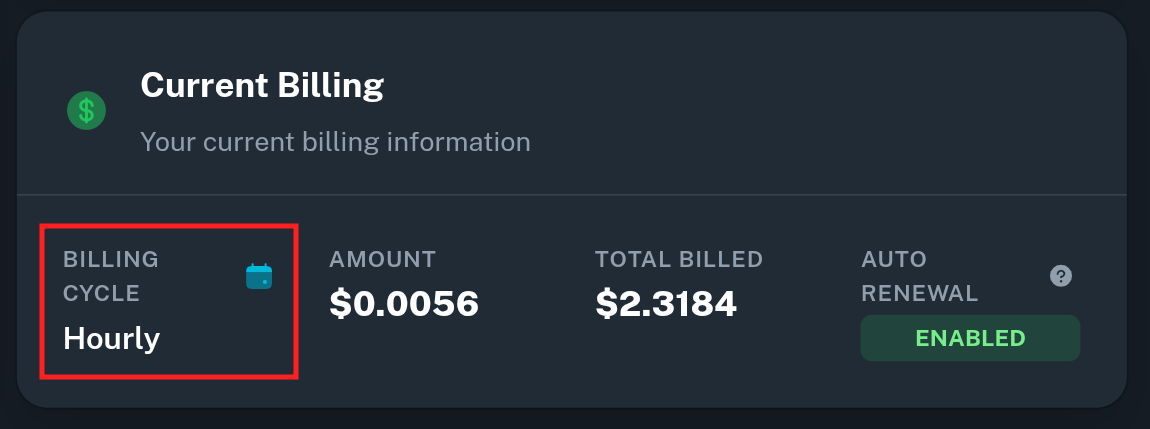
Onidel Cloud supports changing the billing period right from the panel. You can change it to longer or shorter billing period as you see fit.
Changing the Billing Cycle
-
First log into your Onidel Cloud Account.
-
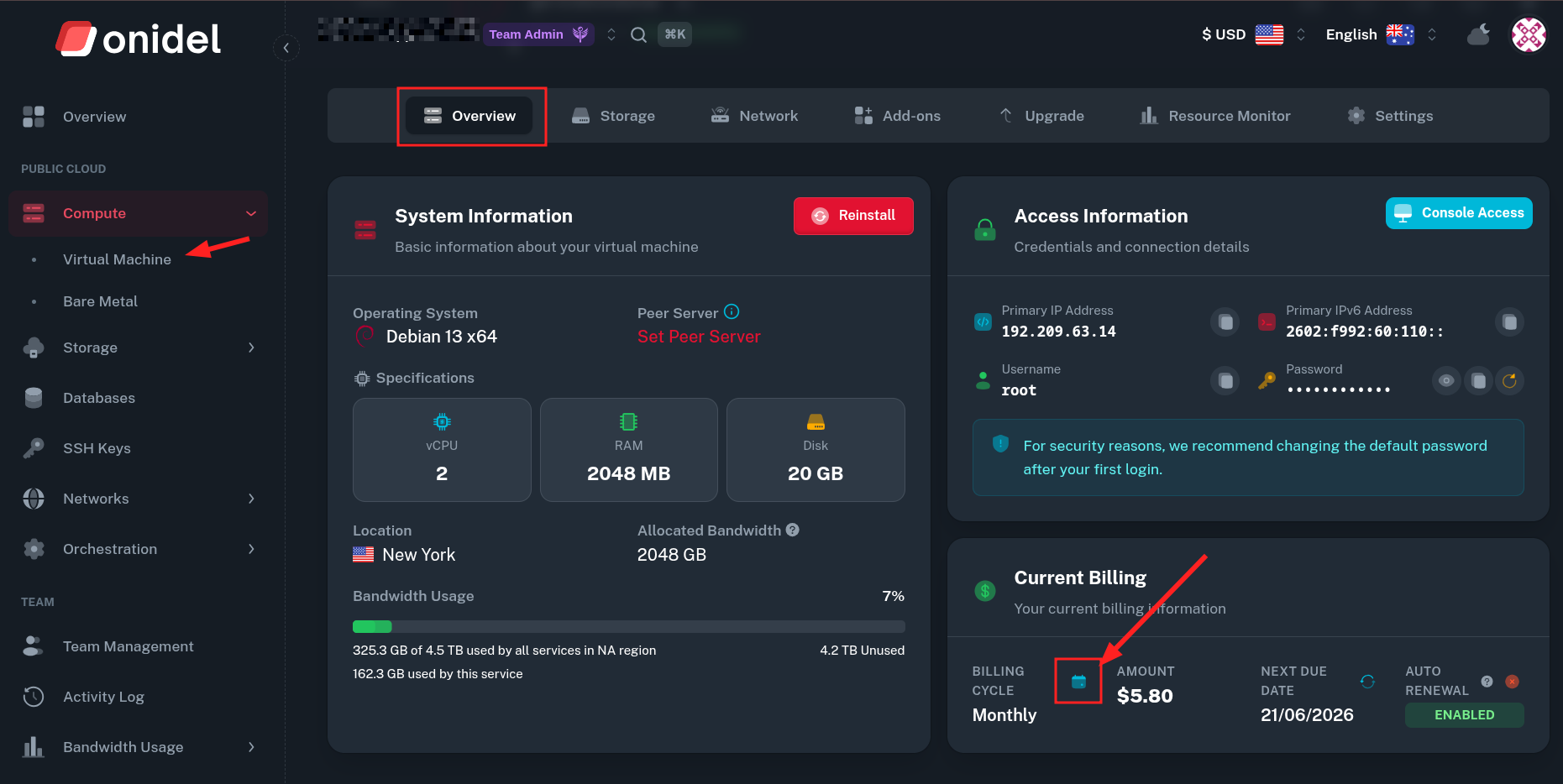
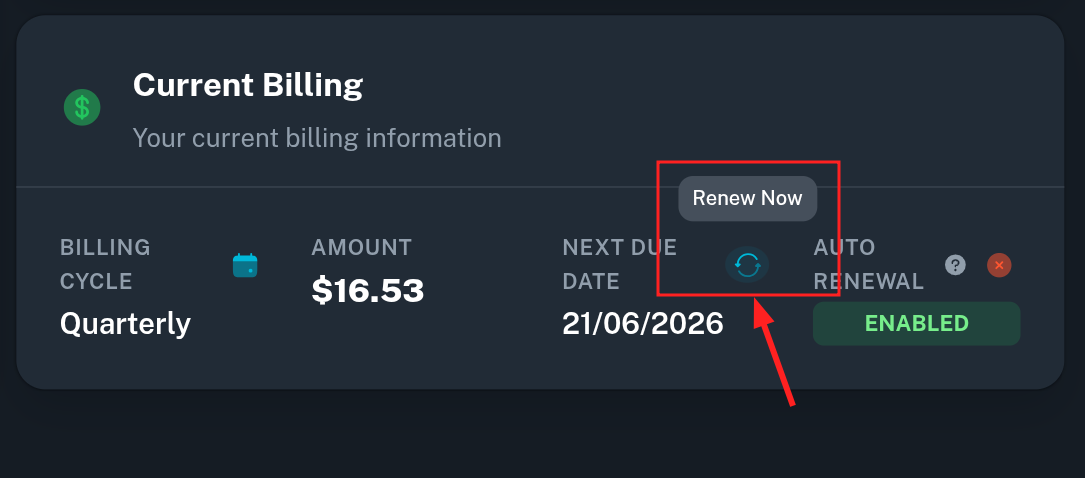
Next navigate to Compute > Virtual Machine > (select your VM) > Overview > Current Billing. Then change the Billing Cycle after clicking the calendar icon.
-
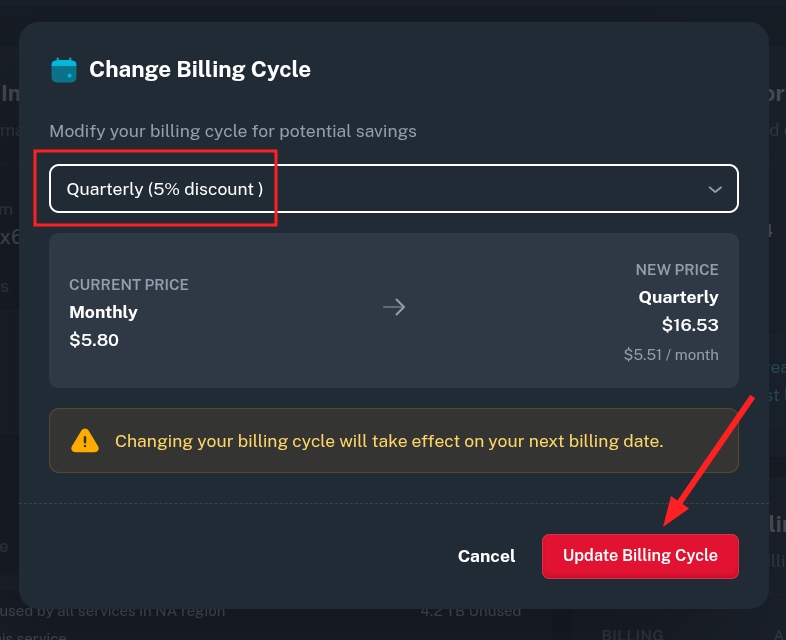
After selecting an option, the new price and monthly rate will be displayed. If all looks good, click the Update Billing Cycle button.
-
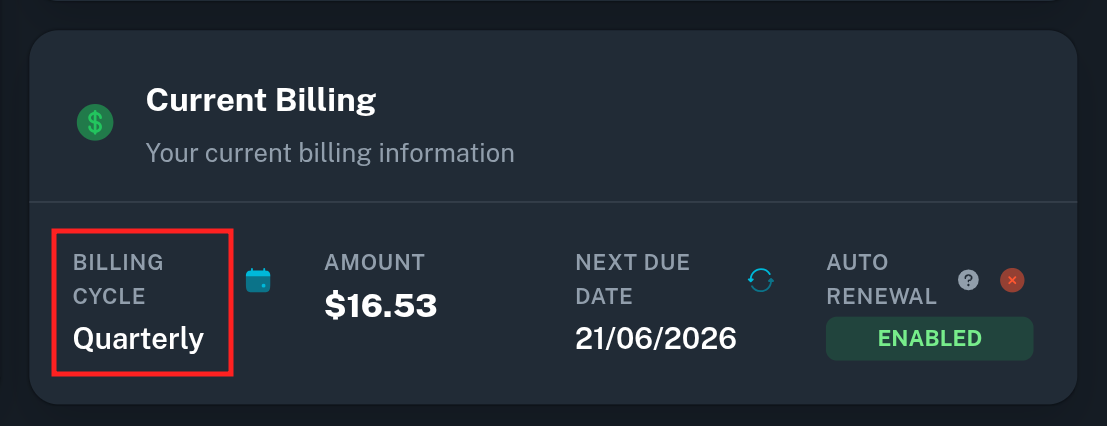
Your billing cycle should be updated by now.
-
Keep in mind it will take effect on the next billing date once the new invoice is generated. Alternatively you can click Renew Now to get the new invoice immediately.
Changing the Billing Cycle with Hourly Billing
We currently do not support changing billing cycle to hourly.
If your VM is currently on Hourly Billing, you can change its billing period, but it will not be possible to return back to hourly billing after this.