
Disabling password-based authentication for SSH is one of the most effective ways to secure your Linux cloud server. Once disabled, only users possessing an authorized SSH private key will be able to log in over SSH.
Why It Matters
-
Protection against automated brute-force attacks: Public IPv4 addresses on cloud servers receive thousands of automated connection attempts every day from botnets attempting common username and password combinations. Disabling password authentication eliminates this entire attack vector.
-
Reduced server load and cleaner logs: Rejecting unauthorized connections immediately at the public-key stage prevents authentication logs from being flooded and reduces CPU cycles spent on repeated password hashing handshakes.
-
Cryptographic strength: Modern SSH key pairs provide cryptographic strength that is virtually impossible to crack or guess, unlike passwords which can be compromised through leaks, dictionary attacks, or social engineering.
Downsides and Considerations
Before disabling password login, keep the following considerations in mind:
-
Risk of lockout: If you lose your private key or your local storage fails without a backup, you will not be able to log in over SSH.
- Onidel Safeguard: If you ever get locked out of SSH, you can still access your virtual machine using the noVNC Web Console directly within the Onidel Cloud Console. The local system console is not subject to SSH daemon restrictions and you may still use the root password to login.
-
Device dependency: You can only connect to your server from computers or devices that have your private SSH key installed. You cannot quickly log in from an untrusted or guest device using just a memorized password.
-
Key management responsibility: You are responsible for keeping your private key secure and setting an optional passphrase on the key itself for additional protection.
1. Ensure SSH Key Access Is Configured
Before disabling password authentication, you must confirm that your SSH public key is installed on the server and that you can successfully log in with it.
You can set up your SSH key using either of the two methods below:
Via Onidel Cloud Panel (Recommended for new or reinstalled VMs)
-
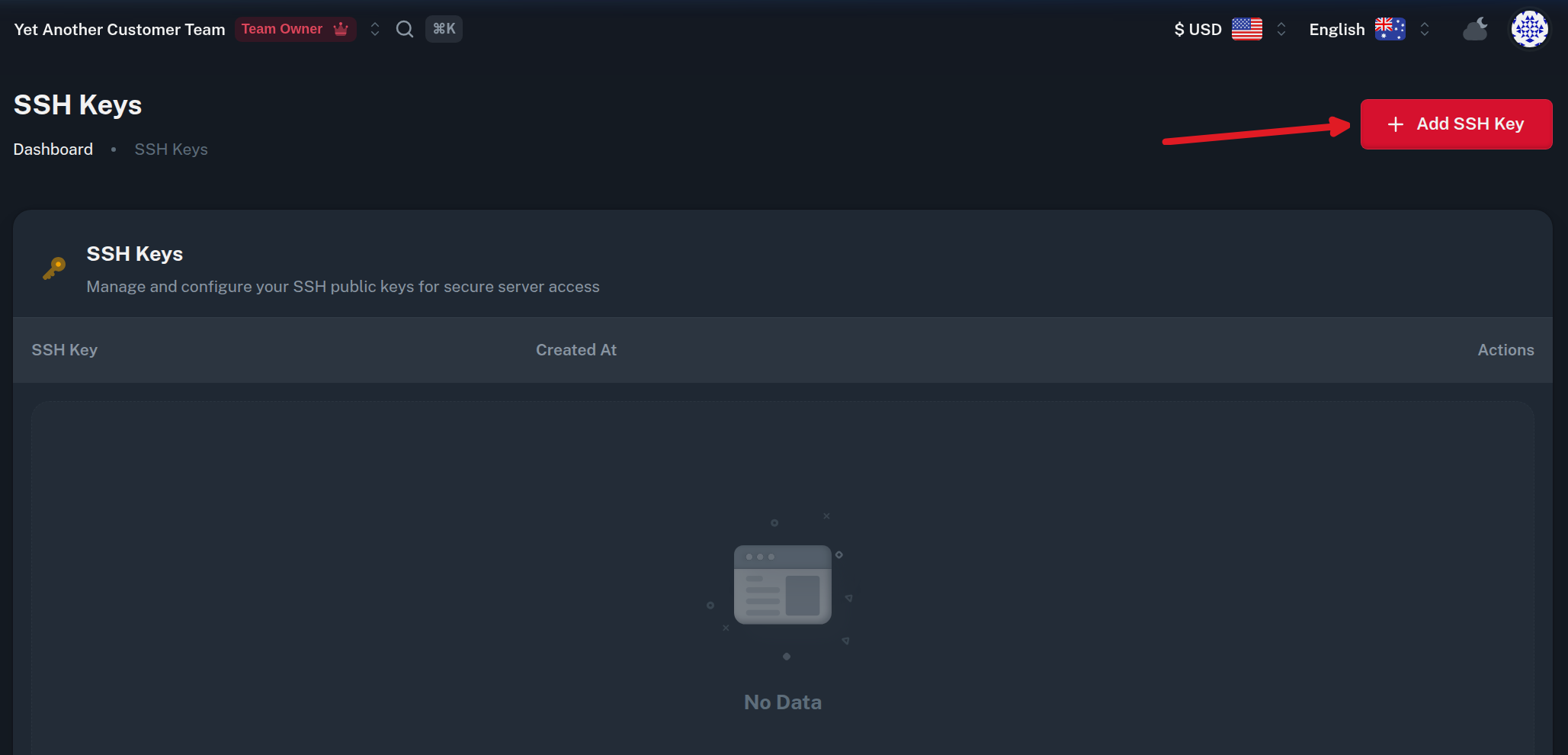
Navigate to SSH Keys and click Add SSH Key:
-
Give your key a memorable SSH Key Name and paste your public key (e.g., from
~/.ssh/id_ed25519.pubon your local computer) into the SSH Public Key field. Then click Add SSH Key: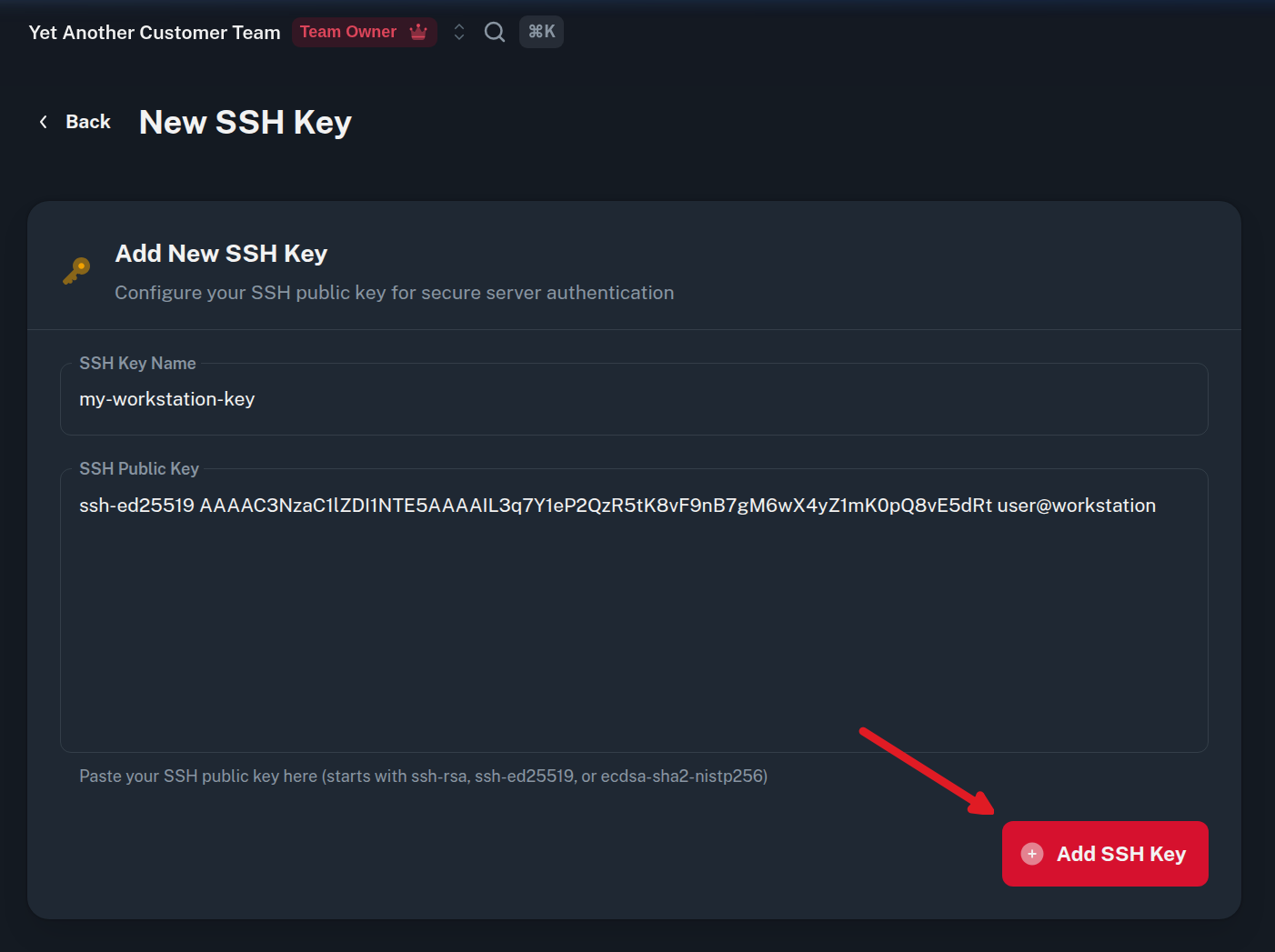
-
When provisioning or reinstalling your VM:
-
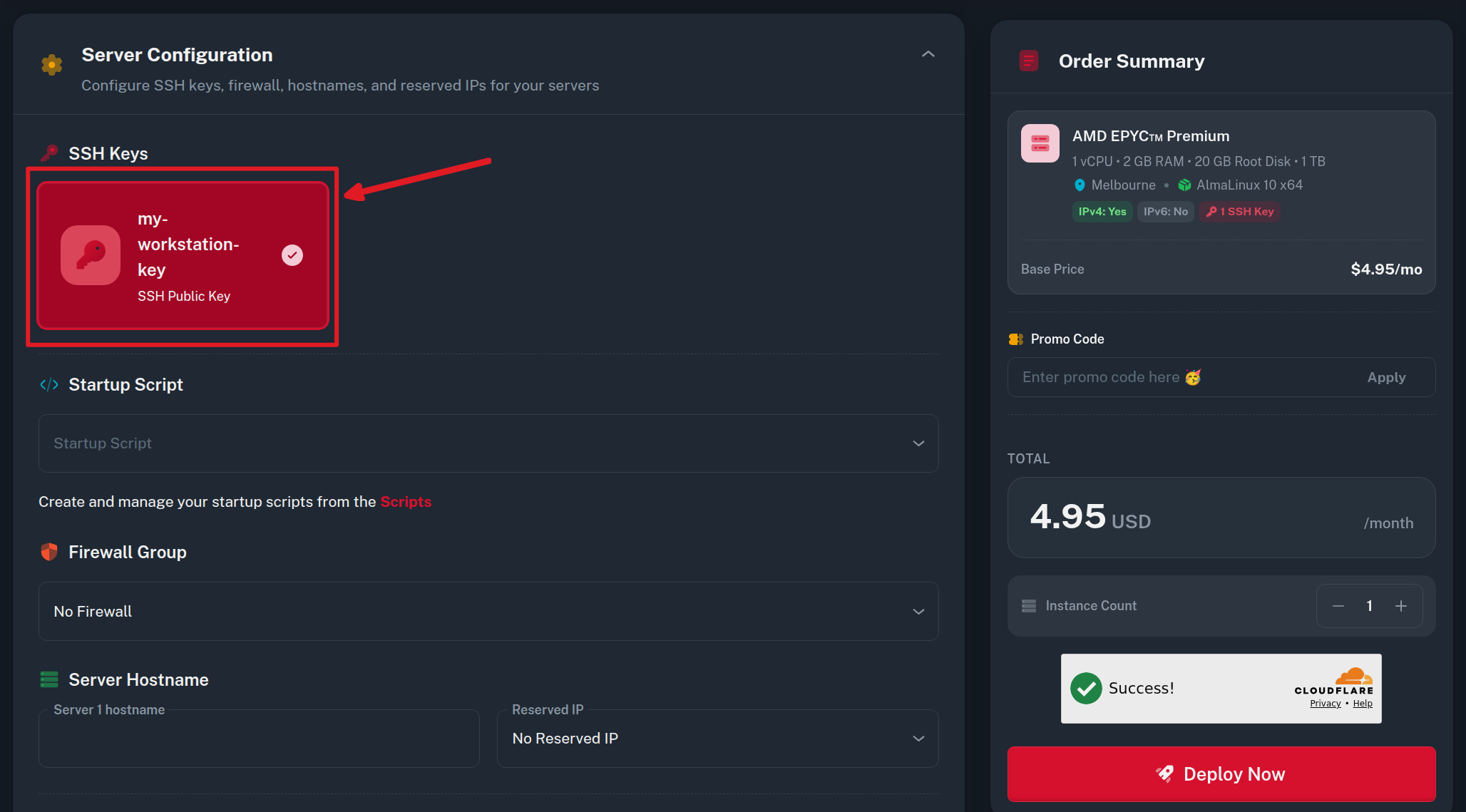
During VM Deployment: Scroll to the Server Configuration section and select your saved SSH key:
-
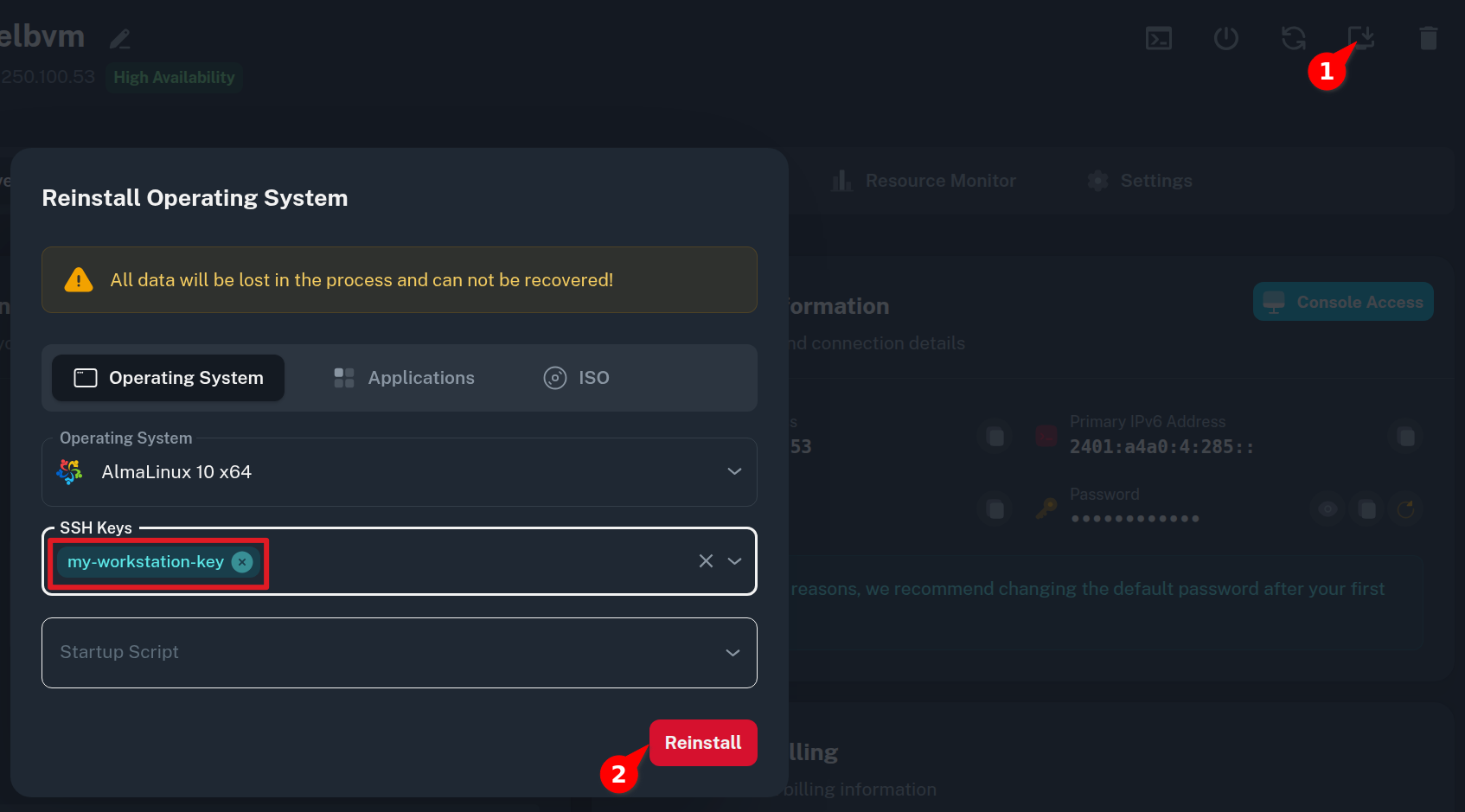
During OS Reinstall: In the Reinstall Operating System dialog, select your key from the SSH Keys dropdown:
-
Onidel's cloud-init system will automatically inject your public key into /root/.ssh/authorized_keys during provisioning.
Add your key manually inside an existing VM
If your VM is already running with password authentication and you want to add your SSH key without reinstalling:
From your local computer using ssh-copy-id:
ssh-copy-id -i ~/.ssh/id_ed25519.pub root@<YOUR_SERVER_IP>
Or manually inside the VM:
-
Log in to your VM and ensure the
~/.sshdirectory exists with correct permissions:mkdir -p ~/.ssh chmod 700 ~/.ssh -
Append your public key (the contents of
id_ed25519.pubfrom your computer) to~/.ssh/authorized_keys:echo "YOUR_PUBLIC_KEY_STRING" >> ~/.ssh/authorized_keys chmod 600 ~/.ssh/authorized_keys
Verify Key Login Before Proceeding
Open a new terminal window on your local machine and verify that you can connect using your key:
ssh -i ~/.ssh/id_ed25519 root@<YOUR_SERVER_IP>
❗ Important: Do not proceed to the next step until you have verified that key-based login works. Keep your existing SSH session open as a safety net while applying changes.
2. Disable Password Authentication in SSH
Modern Debian (and cloud-init enabled images) use drop-in configuration files located in /etc/ssh/sshd_config.d/.
ℹ️ Note on OpenSSH Configuration Precedence: OpenSSH parses configuration directives on a first-match-wins basis. Cloud images often include default files such as 50-cloud-init.conf and 90-cloud-init-override.conf. Therefore, simply appending settings to the bottom of /etc/ssh/sshd_config or creating a higher-numbered file (like 99-*.conf) will not take effect. Creating a drop-in file starting with 01- ensures your settings take highest priority.
-
Create a drop-in configuration file
/etc/ssh/sshd_config.d/01-disable-password-auth.conf:tee /etc/ssh/sshd_config.d/01-disable-password-auth.conf << 'EOF' PasswordAuthentication no KbdInteractiveAuthentication no EOF -
Test the SSH daemon configuration for syntax errors:
sshd -t(If no output is returned, the syntax is valid).
-
Confirm that the effective runtime configuration shows password authentication disabled:
sshd -T | grep -E '^(passwordauthentication|kbdinteractiveauthentication)'You should see:
passwordauthentication no kbdinteractiveauthentication no -
Reload the SSH service to apply the configuration:
systemctl reload ssh
3. Verify the Changes
Without closing your current active terminal session, open a second terminal window on your local machine to test:
-
Verify key authentication still works:
ssh -i ~/.ssh/id_ed25519 root@<YOUR_SERVER_IP> -
Verify password authentication is rejected:
ssh -o PubkeyAuthentication=no -o PreferredAuthentications=password root@<YOUR_SERVER_IP>The server should immediately deny the connection without prompting for a password:
root@<YOUR_SERVER_IP>: Permission denied (publickey).
Once confirmed, password authentication is successfully disabled.
Differences on Other Linux Distributions
While the underlying OpenSSH directives (PasswordAuthentication no and KbdInteractiveAuthentication no) are the same, service management and file configurations may differ across Onidel's supported operating system templates.
Ubuntu (22.04, 24.04, 26.04 LTS)
-
Configuration: Operates identically to Debian. Drop-in configuration files in
/etc/ssh/sshd_config.d/are enabled by default. Use/etc/ssh/sshd_config.d/01-disable-password-auth.conf. -
Service reload:
systemctl reload ssh
AlmaLinux, Rocky Linux, RHEL
-
Configuration: Drop-in directory
/etc/ssh/sshd_config.d/is supported by default. Create/etc/ssh/sshd_config.d/01-disable-password-auth.confas described in Step 2. -
Service name: The systemd service is named
sshd(instead ofssh):systemctl reload sshd
Alpine Linux
-
Service manager: Alpine Linux uses OpenRC instead of systemd.
rc-service sshd reload -
Configuration: Base OpenSSH packages on Alpine read
/etc/ssh/sshd_configdirectly. Edit/etc/ssh/sshd_configto ensurePasswordAuthentication nois set, or addInclude /etc/ssh/sshd_config.d/*.confif you prefer drop-in configuration files.